Summary
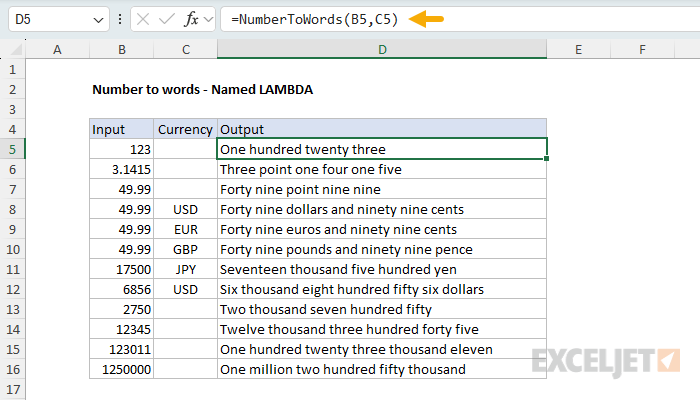
Excel doesn't provide a built-in function to convert numbers to words, but you can create your own using the LAMBDA function. In this article, I'll show you how to build a custom NumberToWords function that converts numbers like 1234 into "One thousand two hundred thirty four". Once you have created a custom function, you can call it like any other Excel function. In the worksheet shown, the formula in cell D5 is:
=NumberToWords(B5)
In addition to a plain number format, the function provides optional currency formatting for USD, EUR, GBP, and JPY. See below for the formula source code and a detailed explanation.
Generic formula
=NumberToWords(A1,"USD")
Explanation
In this example, the goal is to build a custom function that will convert a number like 123 into "One hundred twenty three" or "One hundred twenty three dollars" when currency is specified as USD. In addition, the formula should support multiple currencies and handle decimals.
Traditionally, "number to words" conversion is handled in Excel with custom VBA code. This is a fine solution, but it does mean the workbook needs to be saved with the .xlsm extension to enable macros, which can cause security problems in some corporate environments. However, my primary goal was to explore solving a hard problem with Excel's new dynamic array functions, including saving the result as a custom function that can be used in any Excel workbook. The key functions that make this possible are the LET function and the LAMBDA function, which are available in Excel 365 and Excel 2021+.
The final result is a formula that's complex enough to handle real-world requirements, but organized in a way that's understandable and maintainable. I think this example clearly demonstrates that Excel's formula engine has come a long way in the past few years. It is now possible to write sophisticated formulas with reusable subroutines, and the result can be saved as a custom Excel function that is simple to use.
Table of contents
- Formula usage
- Formula code
- Notable features
- Lookup arrays for word mapping
- Currency configuration
- Chunking by place value
- Reusable conversion function
- Decimal handling
- Avoid AND/OR in spilling formulas
- Naming the function in Excel
Formula usage
Once you've created the NumberToWords function, you can use it like any built-in Excel function:
=NumberToWords(1234)           // One thousand two hundred thirty four
=NumberToWords(1234, "USD")    // One thousand two hundred thirty four dollars
=NumberToWords(25.37, "USD")   // Twenty five dollars and thirty seven cents
=NumberToWords(100.50, "EUR")  // One hundred euros and fifty cents
=NumberToWords(1.50, "GBP")    // One pound and fifty pence
=NumberToWords(10500, "JPY")   // Ten thousand five hundred yen
The function also spills, so you can apply it to an entire range at once:
=NumberToWords(A1:A10)         // Converts all values in the range
=NumberToWords(A1:A10, "USD")  // Converts with USD currency
Note: I used camel case for the final function name (NumberToWords) instead of uppercase (NUMBERTOWORDS) so that the function stands out as a custom function when it appears in Excel's list of built-in functions. This is personal preference only.
Formula code
Here's the complete NumberToWords function. Note that I've included in-line comments for readability. In-line comments won't work in Excel's formula bar, but the Advanced Formula Environment (AFE) provided by Excel Labs supports them.
=LAMBDA(number, [currency],
  LET(
    // Normalize parameters
    num, number,
    curr, IF(ISOMITTED(currency), "", currency),
    // Return empty string for blank input
    IF(num="", "",
      LET(
        // Lookup arrays for converting digits to words
        ones_array, {"","one","two","three","four","five","six","seven","eight","nine"},
        teens_array, {"ten","eleven","twelve","thirteen","fourteen","fifteen","sixteen","seventeen","eighteen","nineteen"},
        tens_array, {"","","twenty","thirty","forty","fifty","sixty","seventy","eighty","ninety"},
        digit_words, {"zero","one","two","three","four","five","six","seven","eight","nine"},
        // Currency configuration
        is_currency, curr<>"",
        currency_names, CHOOSE(MATCH(curr, {"USD","EUR","GBP","JPY"}, 0),
          {"dollar","dollars","cent","cents"},
          {"euro","euros","cent","cents"},
          {"pound","pounds","penny","pence"},
          {"yen","yen","",""}
        ),
        has_subunit, IF(is_currency, INDEX(currency_names,3)<>"", FALSE),
        // Prepare number for processing
        rounded_num, IF(is_currency, ROUND(num, 2), num),
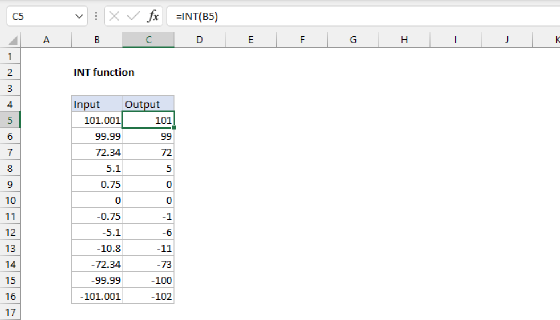
        int_part, INT(rounded_num),
        dec_part, rounded_num - int_part,
        // Helper function to convert any 0-999 number to words
        convert999, LAMBDA(n,
          LET(
            ones, INDEX(ones_array, MOD(n,10)+1),
            teens, INDEX(teens_array, MOD(n,100)-9),
            tens, INDEX(tens_array, INT(MOD(n,100)/10)+1),
            hundreds, IF(n>=100, INDEX(ones_array, INT(n/100)+1) & " hundred ", ""),
            hundreds & IF(MOD(n,100)>=10, IF(MOD(n,100)<=19, teens, tens & " " & ones), ones)
          )
        ),
        // Extract 3-digit chunks for each place value
        trillions_chunk, INT(int_part/1000000000000),
        billions_chunk, INT(MOD(int_part,1000000000000)/1000000000),
        millions_chunk, INT(MOD(int_part,1000000000)/1000000),
        thousands_chunk, INT(MOD(int_part,1000000)/1000),
        ones_chunk, MOD(int_part,1000),
        dec_chunk, IF(is_currency, ROUND(dec_part * 100, 0), dec_part),
        // Convert each chunk to words with scale word
        trillions_text, IF(trillions_chunk>0, convert999(trillions_chunk) & " trillion ", ""),
        billions_text, IF(billions_chunk>0, convert999(billions_chunk) & " billion ", ""),
        millions_text, IF(millions_chunk>0, convert999(millions_chunk) & " million ", ""),
        thousands_text, IF(thousands_chunk>0, convert999(thousands_chunk) & " thousand ", ""),
        ones_text, IF(ones_chunk>0, convert999(ones_chunk), ""),
        // Combine integer chunks into final integer words
        integer_result, IF(int_part=0, "zero", trillions_text & billions_text & millions_text & thousands_text & ones_text),
        // Handle decimal portion based on mode
        dec_text, IF(is_currency,
          // Currency mode: convert to cents/pence
          IF((dec_chunk>0)*has_subunit,
            " and " & convert999(dec_chunk) & " " &
            IF(dec_chunk=1, INDEX(currency_names,3), INDEX(currency_names,4)),
            ""
          ),
          // Non-currency mode: spell out digits
          IF(dec_part>0,
            LET(
              dec_digits, TEXTAFTER(rounded_num, "."),
              dec_words, MAP(dec_digits, LAMBDA(d,
                TEXTJOIN(" ", 1, INDEX(digit_words, --MID(d, SEQUENCE(LEN(d)), 1) + 1))
              )),
              " point " & dec_words
            ),
            ""
          )
        ),
        // Assemble final result based on mode
        final_result, IF(is_currency,
          // Currency mode
          IF(int_part=0,
            // Handle amounts less than one currency unit
            IF((dec_chunk>0)*has_subunit,
              convert999(dec_chunk) & " " & IF(dec_chunk=1, INDEX(currency_names,3), INDEX(currency_names,4)),
              "zero " & INDEX(currency_names,2)
            ),
            // Standard currency format with singular/plural handling
            integer_result & " " & IF(int_part=1, INDEX(currency_names,1), INDEX(currency_names,2)) & dec_text
          ),
          // Non-currency mode
          integer_result & dec_text
        ),
        // Remove extra space
        trimmed, TRIM(final_result),
        // Capitalize first letter
        REPLACE(trimmed, 1, 1, UPPER(LEFT(trimmed)))
      )
    )
  )
)
Notable features
The formula handles several tricky edge cases:
- Blank cells: Return an empty string instead of "Zero"
- Teens (10-19): Use a separate lookup array since these don't follow the regular tens pattern
- Internal zeros: Numbers like 1001 correctly return "One thousand one" (not "One thousand zero one")
- Singular vs plural: "One dollar" vs "Two dollars", "One cent" vs "Two cents"
- Multiple currencies: The formula currently supports four currencies, including USD, EUR, GBP, and JPY. More currencies can be added by extending the currency_names array.
- Currencies without subunits: JPY ignores decimals entirely
Lookup arrays for word mapping
The formula uses simple arrays to map digits to words:
ones_array, {"","one","two","three",...}
teens_array, {"ten","eleven","twelve",...}
tens_array, {"","","twenty","thirty",...}
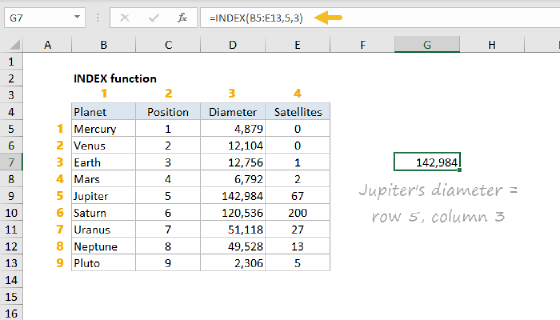
These arrays make the conversion logic straightforward. Instead of long nested IF statements, we use the INDEX function to pull the right word: INDEX(ones_array, MOD(n,10)+1) extracts the ones digit and returns its word equivalent.
Currency configuration
Currency support is handled through a configuration array that defines the singular and plural forms for both the main unit and subunit. This array is used to look up the correct currency names based on the currency code.
{"dollar","dollars","cent","cents"}
{"euro","euros","cent","cents"}
{"pound","pounds","penny","pence"}
{"yen","yen","",""}
Notice that JPY has empty strings for the subunit, since yen has no fractional currency. The formula checks for this and skips decimal text when the subunit is empty. Also, notice that we use the CHOOSE function to look up the correct currency names based on the currency code.
currency_names, CHOOSE(MATCH(curr, {"USD","EUR","GBP","JPY"}, 0),
  {"dollar","dollars","cent","cents"},
  {"euro","euros","cent","cents"},
  {"pound","pounds","penny","pence"},
  {"yen","yen","",""}
)
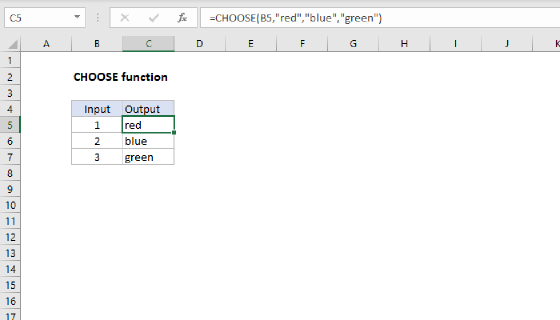
CHOOSE is old school, but it is quite flexible. We use it here to look up the correct currency units, which are stored in an array, not just a single value. The MATCH function is used to find the index of the currency code in the array of currency codes.
MATCH(curr, {"USD","EUR","GBP","JPY"}, 0)
Chunking by place value
The formula splits large numbers into 3-digit "chunks" based on place value (ones, thousands, millions, billions, trillions).
// Extract 3-digit chunks for each place value
trillions_chunk, INT(int_part/1000000000000),
billions_chunk, INT(MOD(int_part,1000000000000)/1000000000),
millions_chunk, INT(MOD(int_part,1000000000)/1000000),
thousands_chunk, INT(MOD(int_part,1000000)/1000),
ones_chunk, MOD(int_part,1000),
dec_chunk, IF(is_currency, ROUND(dec_part * 100, 0), dec_part),
For example, 123,456,789 becomes three chunks: 123 (millions), 456 (thousands), and 789 (ones). Each chunk is converted independently, then reassembled with the appropriate scale word (thousand, million, billion, trillion).
// Convert each chunk to words with scale word
trillions_text, IF(trillions_chunk>0, convert999(trillions_chunk) & " trillion ", ""),
billions_text, IF(billions_chunk>0, convert999(billions_chunk) & " billion ", ""),
millions_text, IF(millions_chunk>0, convert999(millions_chunk) & " million ", ""),
thousands_text, IF(thousands_chunk>0, convert999(thousands_chunk) & " thousand ", ""),
ones_text, IF(ones_chunk>0, convert999(ones_chunk), ""),
Notice the convert999 function is used to convert each chunk to words with the appropriate scale word. Each chunk is wrapped in an IF statement to only include it when the chunk is greater than zero.
Reusable conversion function
At the heart of the formula is convert999, a LAMBDA function that converts any number from 0-999 into words. This function is defined once and reused for every chunk, keeping the formula DRY (Don't Repeat Yourself):
convert999, LAMBDA(n,
  LET(
    ones, INDEX(ones_array, MOD(n,10)+1),
    teens, INDEX(teens_array, MOD(n,100)-9),
    tens, INDEX(tens_array, INT(MOD(n,100)/10)+1),
    hundreds, IF(n>=100, INDEX(ones_array, INT(n/100)+1) & " hundred ", ""),
    hundreds & IF(MOD(n,100)>=10, IF(MOD(n,100)<=19, teens, tens & " " & ones), ones)
  )
)
In a nutshell, the convert999 function does the following:
- Extracts the ones, tens, and hundreds digits from the number with the MOD function
- Uses the INDEX function to look up the word equivalent of each digit
- Combines the words into a single string
- Returns the string
Note: This is a powerful pattern — when you have logic that needs to run multiple times, define it as a LAMBDA and call it as needed. This can be done inside the main formula (as in this example) or externally as a separate named function in cases where the code is more general and reusable.
Decimal handling
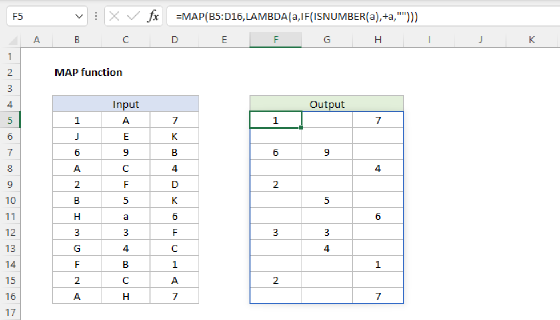
The formula handles decimals in two ways. For standard numbers, decimals are spelled out digit-by-digit. For example, 0.123 becomes "zero point one two three". This is done using the MAP function as follows:
MAP(dec_digits, LAMBDA(d,
    TEXTJOIN(" ", 1, INDEX(digit_words, --MID(d, SEQUENCE(LEN(d)), 1) + 1))
))
Note: using MAP this way is a workaround to allow the entire formula to spill when applied to a range.
For currency mode, decimals are rounded to 2 places and converted as cents or pence using the same convert999 function.
convert999(dec_chunk) & " " & IF(dec_chunk=1, INDEX(currency_names,3), INDEX(currency_names,4))
For the number 25.37, this gives us "Twenty five dollars and thirty seven cents" instead of "Twenty five point three seven dollars".
Avoid AND/OR in spilling formulas
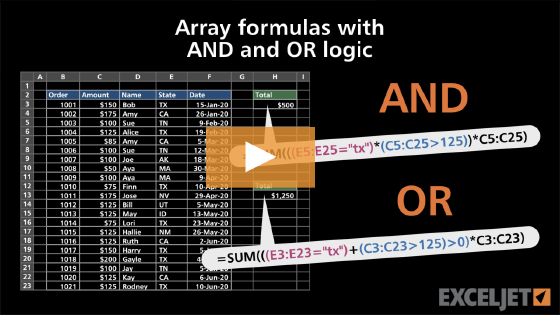
A subtle but important detail: the formula uses multiplication (dec_chunk>0)*has_subunit instead of AND(dec_chunk>0, has_subunit). This is because AND and OR aggregate arrays to a single TRUE/FALSE value, which breaks spilling. Multiplication works element-wise on arrays, keeping each row's calculation independent. For a quick explanation of this problem, see this video
Naming the function in Excel
Here are some ways you can copy the NumberToWords function into your own workbook. Usually, the process of creating a custom function in Excel with a LAMBDA looks like this:
Name Manager
- Go to Formulas → Name Manager → New
- Name: NumberToWords
- Paste the formula in "Refers to"
- Click OK
However, with this formula, it won't work because the Name Manager will not allow you to paste the formula into the "Refers to" field. No error appears - Excel simply beeps. Apparently, there's a limit of around 2000 characters (?) for this field, while the formula is more like 4000 characters. As a workaround, you can use the Excel Labs add-in as follows:
Excel Labs Advanced Formula Environment (AFE)
- Install Excel Labs if not already available.
- Open the Advanced Formula Environment (AFE)
- Navigate to AFE > Modules > Workbook
- Enter "NumberToWords ="
- Paste the entire LAMBDA → "NumberToWords= LAMBDA(...);
- Note the semicolon (;) at the end
- Click the Save icon
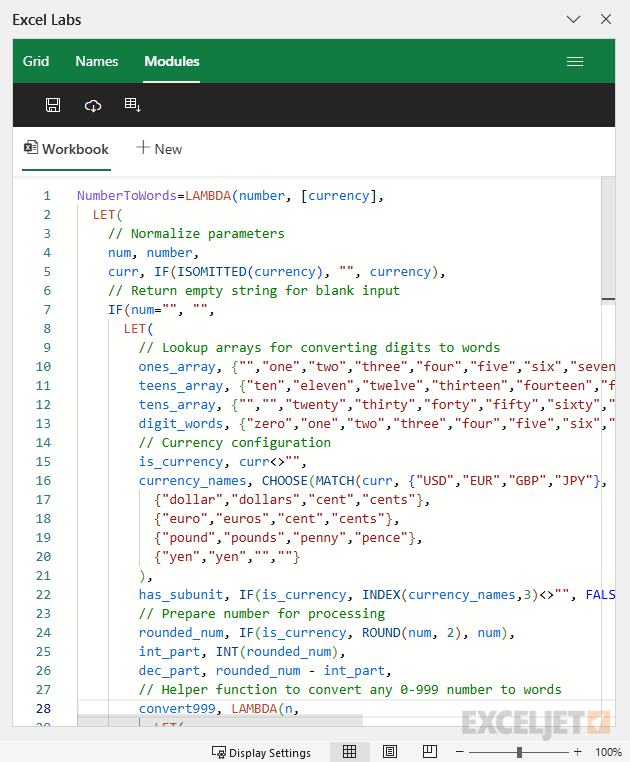
One nice advantage of using AFE's workbook module to name this formula is that the inline comments work just nicely, as you can see in the screen below. This is not the case with the Name Manager, which requires that all comments be removed before Excel will correctly interpret the formula.
Copy sheet to new workbook
If you don't care about editing the formula, and only want to get the NumberToWords function into your own workbook, you can simply copy the sheet to your own workbook.
- Download the workbook on this page.
- Right-click the sheet name and select "Move or Copy…"
- For "To book", select an existing (or new) workbook.
- Tick the "Create a copy" checkbox to leave the original sheet intact.
- Click OK to copy the sheet.
- The NumberToWords function is now in the destination workbook.
- If desired, delete the copied sheet. The NumberToWords function will remain.
Limitations
I did quite a lot of testing on this formula, and it seems to work for the inputs and edge cases I looked at. However, there are still significant limitations, including:
- No support for negative numbers.
- Only handles four currencies (USD, EUR, GBP, and JPY)
- No error checking for invalid inputs, etc.
Most other currencies can be added easily by extending the currency list. Indian Rupees are more complex because they use a different place value system (lakhs and crores) that would require rewriting the chunking logic.