Summary
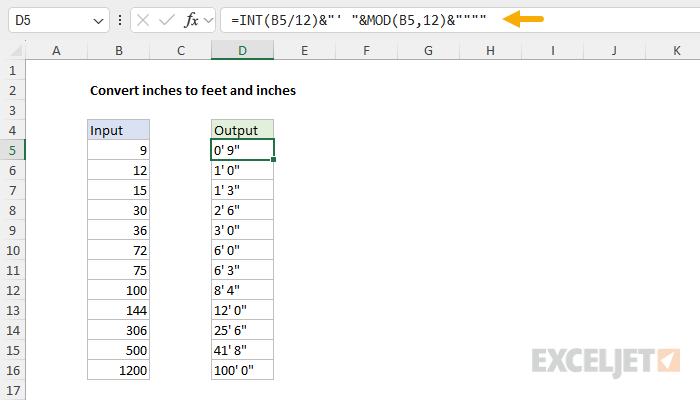
To convert a measurement in inches to inches and feet (i.e. 53 inches to 4' 5") you can use a formula based on the INT and MOD functions. In the example shown, the formula in D5 is:
=INT(B5/12)&"' "&MOD(B5,12)&""""
As the formula is copied down, it converts the inches in column B to feet and inches. Note that the result is a text string, since we need to embed single (') and double (") quotes.
This basic formula works fine with positive values but does not handle negative inputs or rounding. See below for a more robust formula based on the LET function that handles rounding, negative numbers, decimal feet, and fractions of an inch.
Generic formula
=INT(A1/12)&"' "&MOD(A1,12)&""""
Explanation
In this example, the goal is to create a formula that converts a numeric value in inches to a format that displays inches and feet, as seen in the table below:
| Input | Output |
|---|---|
| 9 | 0' 9" |
| 12 | 1' 0" |
| 30 | 2' 6" |
| 75 | 6' 3" |
The math for this problem is fairly simple, but the problem is more complex because we need to assemble a text string that includes a single quote for feet (') and a double quote (") for inches. This means we need to concatenate numbers after we perform the necessary calculations. The article below explains a basic formula for positive inputs, then a more robust formula based on the LET function that handles rounding and negative numbers in one step. After that, we adapt the LET formula to convert decimal feet to feet and inches and to display fractions of an inch. The last section summarizes formulas that work in older versions of Excel without LET.
Table of contents
- Basic formula
- Recommended formula with LET
- Convert decimal feet to feet and inches
- Fractions of an inch
- Legacy Excel
- Summary
Basic formula
In the worksheet shown above, the formula in cell D5 looks like this:
=INT(B5/12)&"' "&MOD(B5,12)&""""
This formula converts a numeric value in inches to text representing the same measurement in inches and feet. To get a value for feet, the INT function is used like this:
=INT(B5/12) // get whole feet
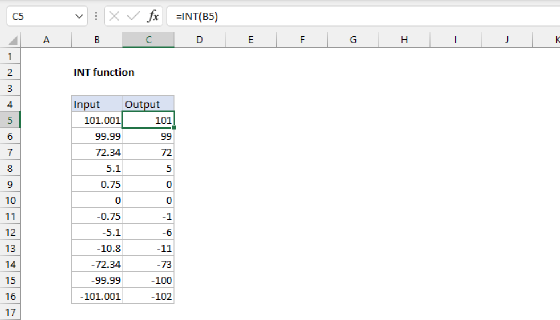
Inside INT, the value in B5 is divided by 12. The INT function returns the integer portion of a decimal number and discards any decimal remainder. The result from INT is the number of whole feet in B5. To get a value for inches, we use the MOD function like this:
MOD(B5,12) // get inches
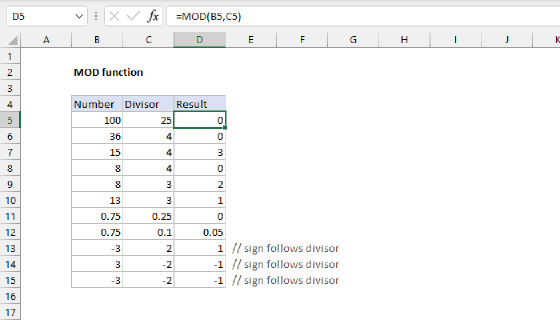
The MOD function divides B5 by 12 and returns the remainder, which corresponds to inches. At this point, we have a number for feet and a number for inches. The remaining task is to concatenate these numbers together into a text string that includes a single quote for feet (') and a double quote (") for inches. We start by adding a single quote with a space to the value for feet:
=INT(B5/12)&"' "
We add a space to separate the feet from the inches. Then we insert another ampersand (&) and add the MOD part of the formula:
=INT(B5/12)&"' "&MOD(B5,12)
We finish with two sets of double quotes (""""):
=INT(B5/12)&"' "&MOD(B5,12)&""""
The outer pair of double quotes tells Excel this is a text value. The inner pair of quotes causes Excel to return one double quote ("). Finally, all values are concatenated together, and Excel returns a result.
To output a value like "8 feet 4 inches", you can adapt the formula like this:
=INT(B5/12)&" feet "&MOD(B5,12)&" inches"
This formula works well for positive inputs, including decimal inches. For example, an input of 30.5 returns 2' 6.5". However, it will return the wrong result for negative numbers, and it does not round the result. To keep the formula organized and readable as we add these features, it makes sense to restructure the formula with the LET function, as explained below.
Recommended formula with LET
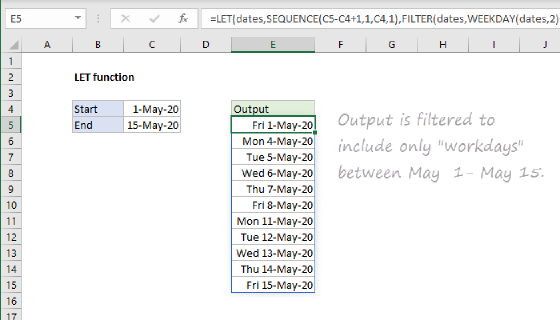
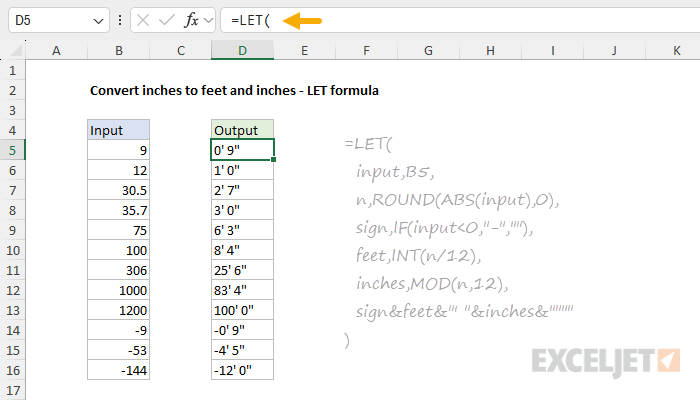
A problem like this is a perfect candidate for the LET function, which makes it possible to assign variables inside a formula. This allows the formula to be read top to bottom in a natural way. With LET, we can write an all-in-one formula that rounds inches to a whole number and handles negative numbers correctly. In the worksheet below, the formula in cell D5 is:
=LET(
  input,B5,
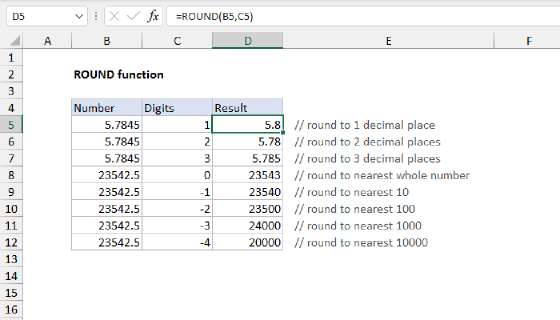
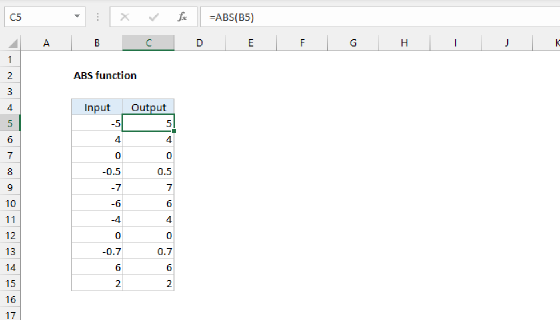
  n,ROUND(ABS(input),0),
  sign,IF(input<0,"-",""),
  feet,INT(n/12),
  inches,MOD(n,12),
  sign&feet&"' "&inches&""""
)
This may look more complicated than the basic formula at first glance, but if you look closely, you will see that the first five lines simply create variables in a logical order:
inputis the value in B5. Assigning the cell reference to a variable on the first line means the reference appears only once in the formula, so there is just one place to change if the address changes.nis the total number of inches as a positive whole number. The ABS function removes the sign, and the ROUND function rounds to zero decimal places. Change the 0 to 1 to keep one decimal place.signis a hyphen ("-") when the input is negative and an empty string ("") otherwise.feetis the number of whole feet, calculated with INT as before.inchesis the remainder in inches, calculated with MOD as before.
The last line concatenates sign, feet, and inches together and returns the result.
Notice that we round the total inches in n before we split the value into feet and inches. This order matters. If you split first and round the inches afterward, a value like 35.7 will be converted to 2 feet and 11.7 inches, and 11.7 will then round up to 12, giving a result of 2' 12". By rounding first, 35.7 becomes 36, and the formula returns 3' 0".
The LET function is available in Excel 2021+ and Excel 365. If you are using an older version of Excel, see the Legacy Excel section below for formulas that work in any version.
Because the cell reference appears only once, this formula is easy to turn into a custom function with the LAMBDA function: remove the first line and make input a parameter. See LAMBDA with LET for the walkthrough.
Convert decimal feet to feet and inches
In some fields, measurements are recorded in decimal feet. For example, surveyors typically record a distance like 4 feet 5 inches as 4.4167 feet. To convert decimal feet to feet and inches, we can use the same LET formula as above, with one change: because the input is in feet, we multiply by 12 to get total inches before rounding. The formula in cell D5 is:
=LET(
  input,B5,
  n,ROUND(ABS(input)*12,0),
  sign,IF(input<0,"-",""),
  feet,INT(n/12),
  inches,MOD(n,12),
  sign&feet&"' "&inches&""""
)
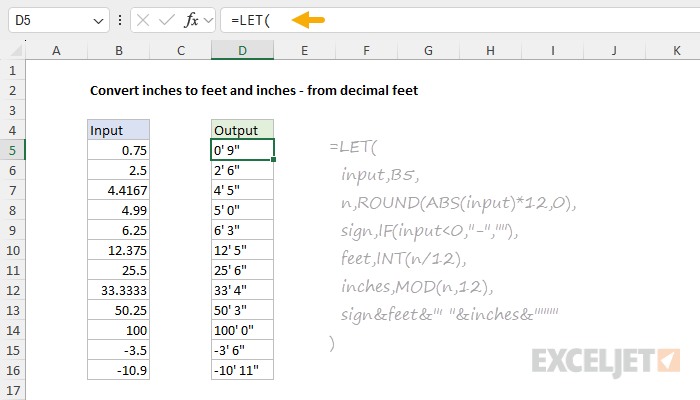
The formula works the same way as before. The only difference is that n is now calculated by multiplying the input by 12 and rounding to the nearest whole inch. The table below shows some sample results:
| Input | Output |
|---|---|
| 4.4167 | 4' 5" |
| 4.99 | 5' 0" |
| 12.375 | 12' 5" |
| -3.5 | -3' 6" |
Again, rounding the total inches first is what makes the formula reliable. An input of 4.99 feet is 59.88 inches, which rounds to 60 inches, or exactly 5' 0". If you instead take 4 whole feet with INT and round the remaining 0.99 feet to inches separately, you will get 4' 12".
Fractions of an inch
In construction and woodworking, inches are often written as fractions, for example 6 1/2" or 3 5/16". To display the inches as a fraction, we can round to the nearest sixteenth of an inch with the MROUND function and format the result with the TEXT function. The formula in cell D5 is:
=LET(
  input,B5,
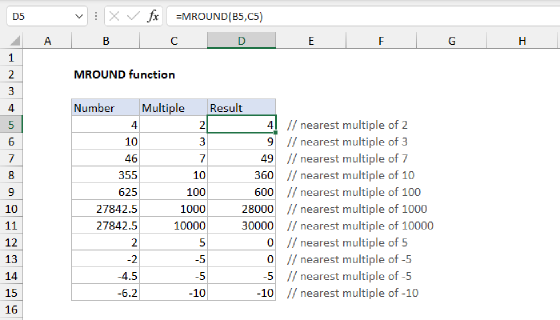
  n,MROUND(ABS(input),1/16),
  sign,IF(input<0,"-",""),
  feet,INT(n/12),
  inches,MOD(n,12),
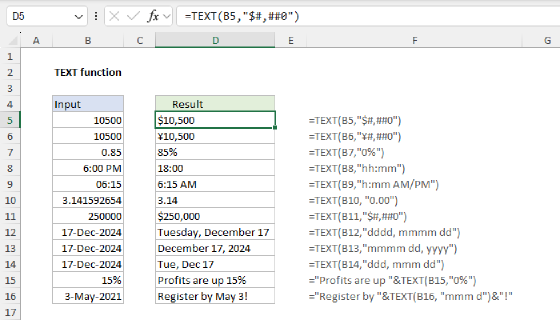
  label,IF(inches=INT(inches),inches,TRIM(TEXT(inches,"# ??/??"))),
  sign&feet&"' "&label&""""
)
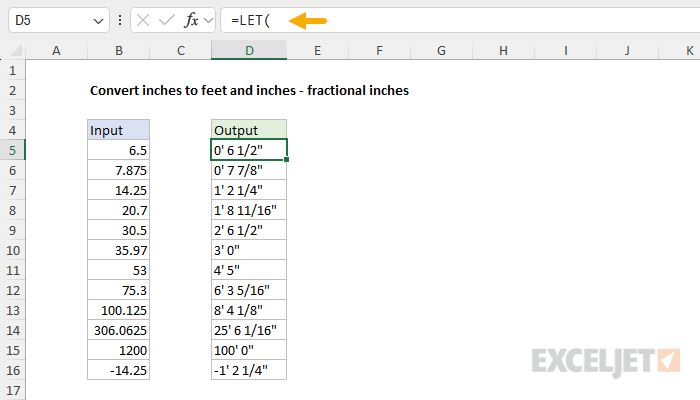
This is the same structure as the LET formula above, with two changes. First, n is calculated with MROUND instead of ROUND, so the total inches are rounded to the nearest 1/16 of an inch instead of the nearest whole inch. To round to the nearest eighth of an inch, use 1/8 instead. Second, we add a variable called label to create the text for inches:
label,IF(inches=INT(inches),inches,TRIM(TEXT(inches,"# ??/??")))
When inches is a whole number, we use the number as is. Otherwise, we use the TEXT function with the number format "# ??/??" to display the value as a mixed number with a fraction reduced to lowest terms, so 6.5 becomes "6 1/2" and 3.3125 becomes "3 5/16". The question marks in the format code are placeholders that Excel pads with spaces when a digit is not needed, so we wrap TEXT in the TRIM function to remove the extra spaces. The last line concatenates sign, feet, and label as before. The table below shows some sample results:
| Input | Output |
|---|---|
| 30.5 | 2' 6 1/2" |
| 75.3 | 6' 3 5/16" |
| 35.97 | 3' 0" |
| -14.25 | -1' 2 1/4" |
Legacy Excel
If you have a version of Excel without the LET function, the formulas below will work in any version. They use the same logic as the LET formula above, but because there are no variables, some calculations are repeated.
To round to a whole number of inches, round the total inches first, then split the result into feet and inches:
=INT(ROUND(B5,0)/12)&"' "&MOD(ROUND(B5,0),12)&""""
To round to one decimal place, use ROUND(B5,1) in both places. It is tempting to round only the inches, by wrapping the MOD function in ROUND, but this fails when the inches round up to 12. For example, with an input of 35.7, INT returns 2 feet, MOD returns 11.7 inches, and ROUND returns 12, so the result is 2' 12". Rounding the total inches first avoids this problem.
To handle negative numbers, use the ABS function to make the input positive, then add the negative sign back with the IF function:
=IF(B5<0,"-","")&INT(ABS(B5)/12)&"' "&MOD(ABS(B5),12)&""""
The IF function returns a hyphen ("-") when the input is negative and an empty string ("") when it is not. Because ABS is applied to B5 in both places, the INT and MOD calculations always work with a positive number.
To round to whole inches and handle negative numbers (the equivalent of the LET formula above), combine the two ideas:
=IF(B5<0,"-","")&INT(ROUND(ABS(B5),0)/12)&"' "&MOD(ROUND(ABS(B5),0),12)&""""
To convert decimal feet, multiply the input by 12 before rounding:
=IF(B5<0,"-","")&INT(ROUND(ABS(B5)*12,0)/12)&"' "&MOD(ROUND(ABS(B5)*12,0),12)&""""
The fractions of an inch formula can be written the same way, but the expression for inches must be repeated three times, so it is not shown here. This kind of repetition is exactly the problem that LET solves.
Summary
Converting inches to feet and inches is mostly a text problem: the math is simple, but the result must be assembled as a text string with embedded quote characters.
- Use INT to get whole feet and MOD to get the remaining inches, then concatenate the two with a single quote and a double quote.
- To round, round the total inches first, then split into feet and inches. Rounding the inches after splitting can produce results like 2' 12".
- The LET formula assigns the input cell to a variable on the first line and handles rounding and negative numbers in one place.
- To convert decimal feet, multiply the input by 12 to get total inches, then use the same formula.
- To show fractions of an inch, round with MROUND and format the inches with TEXT.
- In older versions of Excel without LET, use ABS and IF to handle negative numbers, and repeat the ROUND calculation where needed.
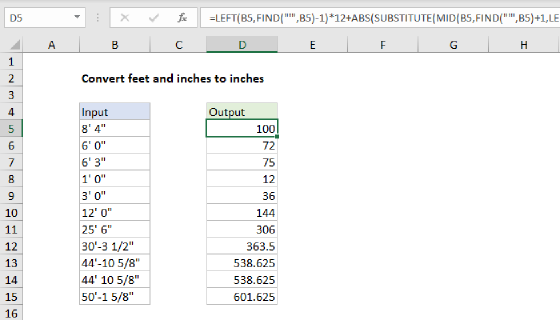
To go the other direction, see Convert feet and inches to inches.