Summary
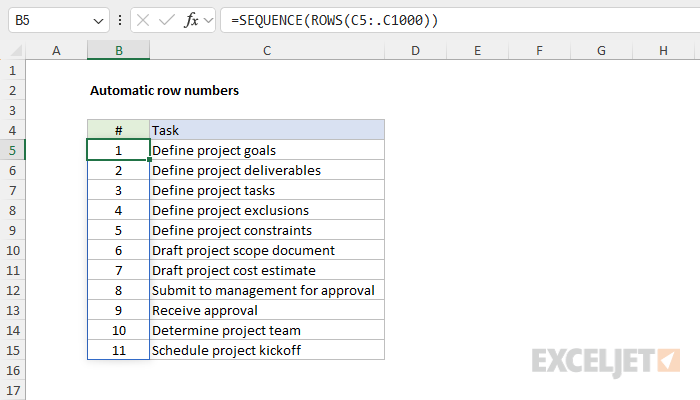
To add automatic row numbers to a list with a formula, you can use the SEQUENCE function with the ROWS function and a trim reference. In the example shown, the formula in B5 is:
=SEQUENCE(ROWS(C5:.C1000))
The result is a list of row numbers that matches the tasks in column C, and the numbers extend or shrink automatically as tasks are added or removed. Trim references need Excel 365; in Excel 2021 and Excel 2024, use the COUNTA function instead: =SEQUENCE(COUNTA(C5:C1000)). See below for the difference between these two formulas, and for ROW formulas that work in any version of Excel.
Generic formula
=SEQUENCE(ROWS(A1:.A1000))
Explanation
In this example, the goal is to create automatic row numbers starting in cell B5 that match the tasks entered in column C. When new tasks are added to the list, the row numbers should increase as required. If tasks are deleted, the row numbers should respond accordingly. This has traditionally been a tricky problem in Excel because there is no built-in function to create and maintain row numbers. There are two basic formula approaches. In Excel 2021+ and Excel 365, a single formula based on the SEQUENCE function can create all the numbers at once. In any version of Excel, a formula based on the ROW function can be copied down the column to create one number in each row. The article below explains both approaches. The best option for you will depend on what Excel version you use, and on whether your list might contain blank rows.
Table of contents
- Manual row numbers with the Fill Handle
- Automatic row numbers with SEQUENCE
- Counting rows with a trim reference
- Counting rows with COUNTA
- Lists with blank rows
- Empty lists
- Row numbers with the ROW function
- Row numbers in an Excel Table
- Row numbers for a named range
- Which formula should you use?
Manual row numbers with the Fill Handle
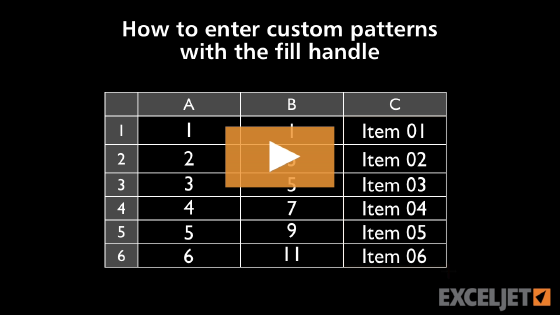
Before we get into the formulas below, a quick tip on entering row numbers manually. The examples below use formulas to automatically generate row numbers. However, if you only need to enter row numbers on a one-time basis, you can use the fill handle to automate most of the process. The trick is to enter the first two numbers to help Excel understand what you want. Then select the two cells, and double click the fill handle to send it down, or simply drag the fill handle to the desired location. The animation below shows the basic process:
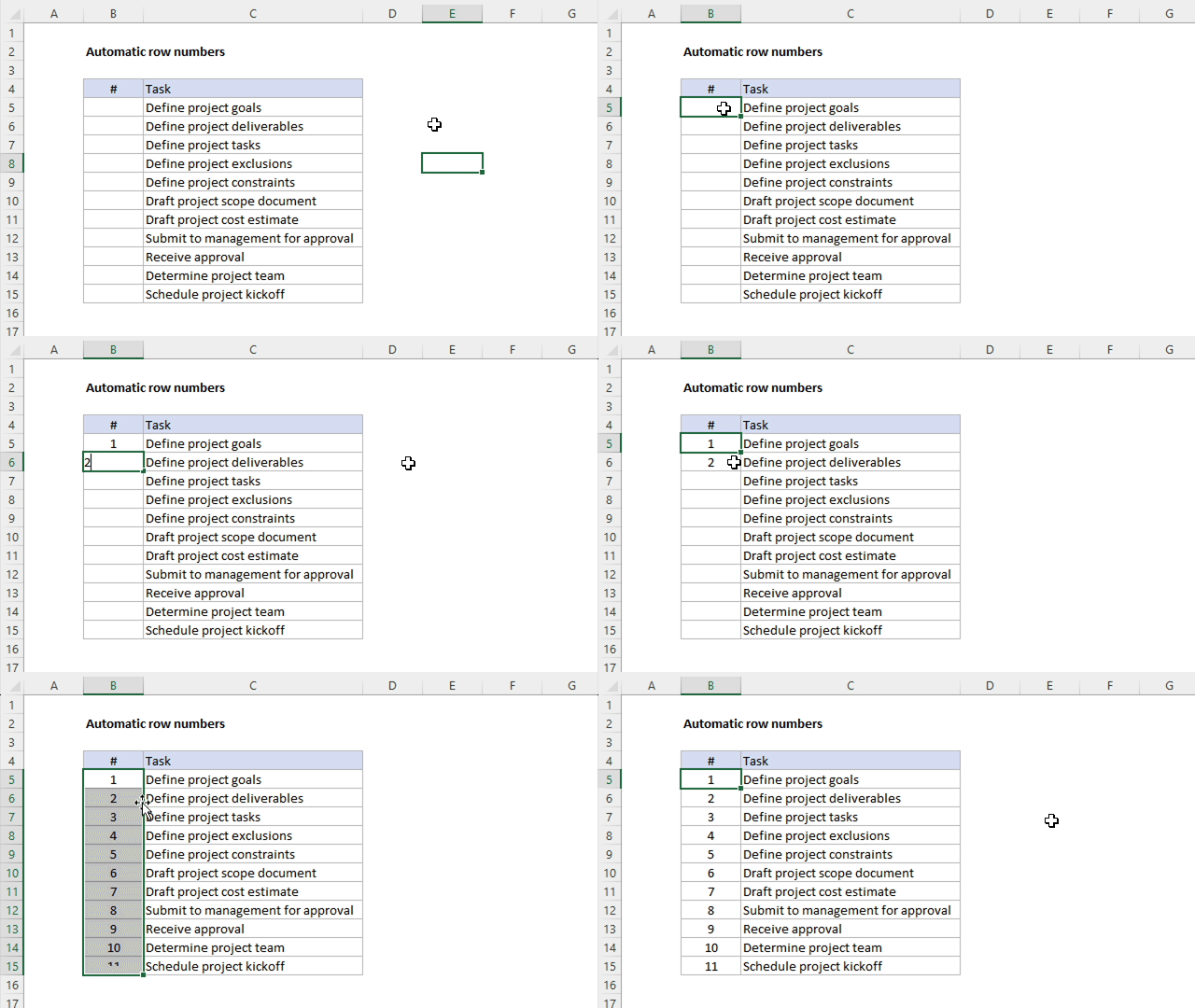
The advantage of this approach is you don't need to use any formulas at all. The disadvantage is that you will need to repeat the process if you add or remove items from the list, or if you otherwise want to generate a new set of row numbers.
Automatic row numbers with SEQUENCE
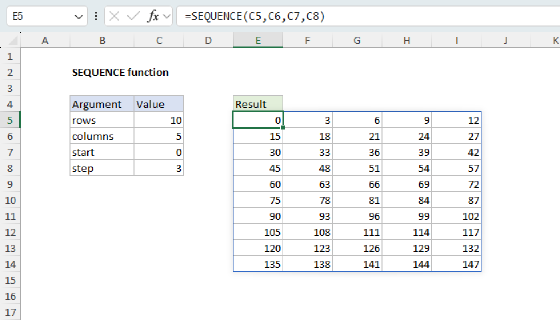
In Excel 2021+ and Excel 365, the easiest way to create automatic row numbers is to use the SEQUENCE function. The SEQUENCE function generates a list of sequential numbers that spill directly on the worksheet. For example, to create numbers between 1-3 you can use SEQUENCE like this:
=SEQUENCE(3) // returns {1;2;3}
If you change rows to 5, SEQUENCE returns an array with 5 numbers:
=SEQUENCE(5) // returns {1;2;3;4;5}
Video: The SEQUENCE function
The output from SEQUENCE is an array of values that will spill into multiple cells. The challenge is how to calculate the number of rows that need numbers. In other words, we need a count of the rows in the list to provide to SEQUENCE and the count should automatically update when the list changes. The next two sections explain two ways to do that.
Counting rows with a trim reference
In Excel 365, the best way to count the rows in the list is to use the ROWS function with a trim reference. This is the approach used in the worksheet shown, where the formula in B5 is:
=SEQUENCE(ROWS(C5:.C1000))
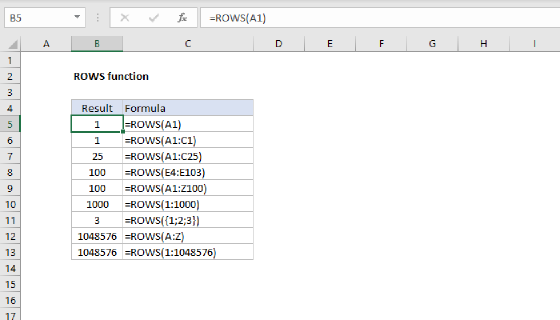
The range C5:.C1000 is a trim reference. The dot after the colon tells Excel to trim empty rows from the end of the range. In the worksheet shown, the last task is in cell C15, so Excel trims the range to C5:C15, and ROWS returns 11:
=ROWS(C5:.C1000) // returns 11
SEQUENCE then returns an array that contains 11 numbers as a final result:
={1;2;3;4;5;6;7;8;9;10;11}
This array lands in cell B5 and spills into the range B5:B15. If a new task is entered in C16, the trimmed range grows to C5:C16, ROWS returns 12, and a new row number appears. If a task is removed, the numbers shrink to match.
C1000 is an arbitrary limit. Use a number large enough to cover any list you expect. Note that the trim reference stops at the last cell in the range that isn't empty, so keep the cells below the list in column C clear. A total or a note entered under the list would be counted as part of the list.
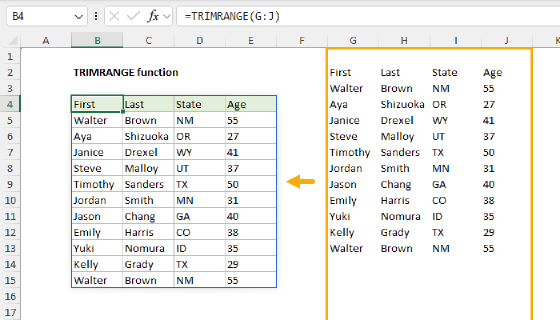
You can also trim the range with the TRIMRANGE function, which works like a trim reference written as a function:
=SEQUENCE(ROWS(TRIMRANGE(C5:C1000)))
One small difference: by default, TRIMRANGE trims empty rows from both ends of a range, while C5:.C1000 only trims the end. If the first row of your list might be blank, set the trim_rows argument to 2 to trim the end only:
=SEQUENCE(ROWS(TRIMRANGE(C5:C1000,2)))
Trim references and TRIMRANGE are available in Excel 365 only.
Counting rows with COUNTA
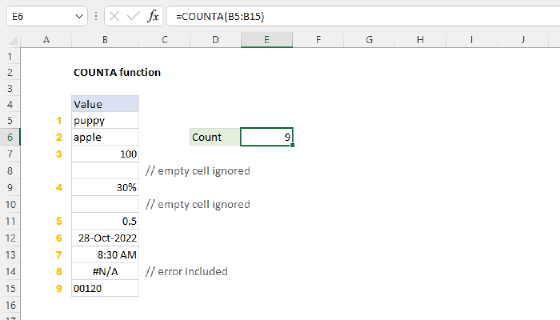
Another way to count the tasks is the COUNTA function, which counts cells that are not empty. It is the option to use in Excel 2021 and Excel 2024, which include SEQUENCE but not trim references or TRIMRANGE:
=SEQUENCE(COUNTA(C5:C1000))
With 11 tasks in C5:C15, COUNTA returns 11, and SEQUENCE returns the same 11 numbers as the trim reference formula above. If the number of tasks in column C changes, COUNTA returns a new count, and SEQUENCE returns a new array of row numbers. As long as the list doesn't contain blank rows (see below), this formula works fine.
You may also see this formula written with a full column reference like this:
=SEQUENCE(COUNTA(C:C)-1)
Here, COUNTA counts every non-blank cell in column C, including the header in cell C4, so 1 is subtracted to get a correct count. This works, but the hardcoded 1 is fragile. If anything else is entered in column C, a title above the list or a note below it, the count will be wrong. Counting a specific range like C5:C1000 avoids this problem.
Lists with blank rows
So what's the difference between the trim reference formula and the COUNTA formula? The difference shows up when the list contains a blank row. In the worksheet below, there is a blank row between the "Define" tasks and the "Draft" tasks. The formula in B5 uses a trim reference, and the formula in E5 uses COUNTA:
=SEQUENCE(ROWS(C5:.C1000)) // B5
=SEQUENCE(COUNTA(C5:C1000)) // E5
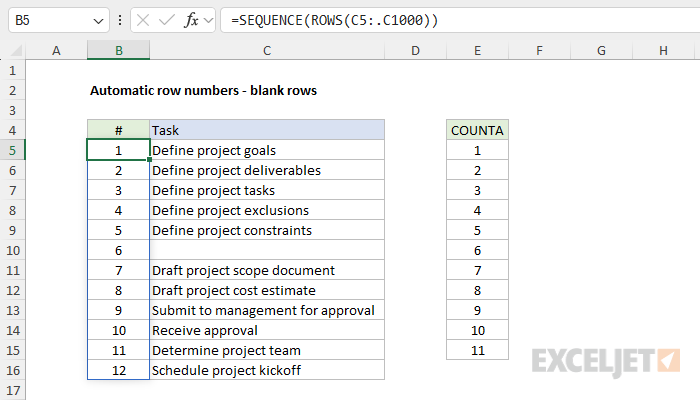
The trim reference only trims empty rows from the end of the range, so the blank row inside the list doesn't change the result. ROWS returns 12, and SEQUENCE returns a number for every row from the first task to the last, including the blank row. The numbers in column B stay lined up with the tasks. COUNTA, on the other hand, counts only cells that aren't empty, so it returns 11, one less than the number of rows in the list. The numbers in column E run out one row early, and the last task is left without a number.
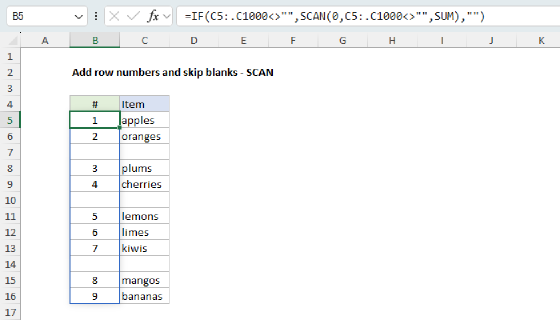
If you want blank rows to be skipped, so that only rows with a task get a number, see Add row numbers and skip blanks.
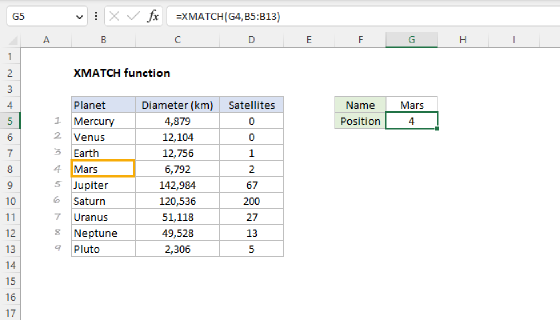
In Excel 2021 and Excel 2024, you can handle blank rows by finding the position of the last task with the XMATCH function, instead of counting tasks with COUNTA:
=SEQUENCE(XMATCH(TRUE,C5:C1000<>"",0,-1))
The expression C5:C1000<>"" returns an array of TRUE and FALSE values, with TRUE for every cell that contains a value. XMATCH looks for TRUE in this array. The search_mode argument is set to -1, so XMATCH searches from the bottom up and returns the position of the last TRUE. In the worksheet above, the last task is in C16, the 12th cell in the range, so XMATCH returns 12, and SEQUENCE returns the numbers 1 to 12. This formula is harder to read than the COUNTA version, but it handles blank rows the same way the trim reference does.
This XMATCH formula also handles a case that trips up the other formulas: a list created by formulas that return an empty string ("") when there is nothing to display. For example, you might pull the tasks from another sheet with a formula copied down to row 100. Cells like this look empty, but they aren't empty, because they contain a formula. A trim reference keeps these cells in the range, and COUNTA counts them, so both formulas will number every row the formula was copied to. The expression C5:C1000<>"" treats an empty string like a blank cell, so XMATCH still finds the last real task.
Empty lists
What happens if the list is empty? None of the SEQUENCE formulas above returns a clean result. With nothing left after trimming, the trim reference returns a #REF! error. COUNTA returns zero, and SEQUENCE returns a #CALC! error when asked for zero rows. XMATCH returns #N/A, because there is no TRUE to find. If your list might be empty at times, you can wrap the formula in the IFERROR function to display nothing instead:
=IFERROR(SEQUENCE(ROWS(C5:.C1000)),"")
As soon as a task is entered in the list, the row numbers return.
Row numbers with the ROW function
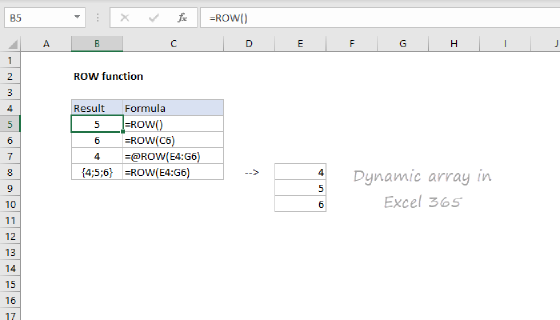
In any version of Excel, you can number rows with a formula based on the ROW function, copied down the column. It is also the only formula option in an Excel Table (see below). As the name implies, the ROW function returns the row number for a reference:
=ROW(A1) // returns 1
=ROW(E3) // returns 3
When a reference is not provided, ROW returns the row number of the cell the formula lives in. For example, if ROW is entered in cell B5, the result is 5:
=ROW() // returns 5 in B5
This means we can create sequential row numbers beginning with 1 by subtracting an appropriate offset value. For example to start numbering in cell B5, we can subtract 4 like this:
=ROW()-4 // returns 1 in B5
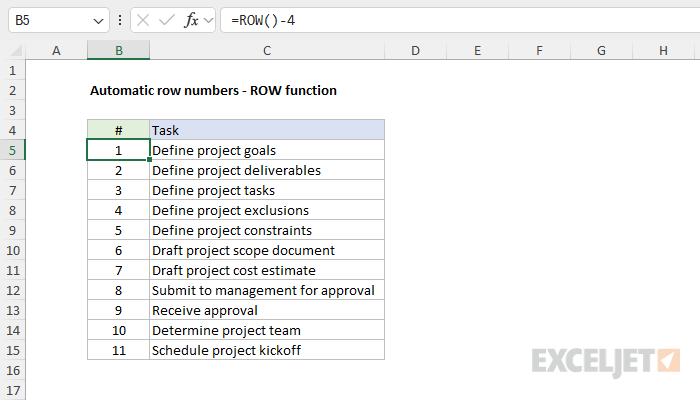
The catch with this formula is that you will need to manually copy it down column B to keep it in sync with the items in the list. This formula will continue to work as long as rows are not added or deleted above the first row of data. If rows are added or deleted above the data, or if you start the list in a different row, the hardcoded offset value 4 will need to be adjusted as needed. The next two sections show how to calculate the offset instead.
Row numbers in an Excel Table
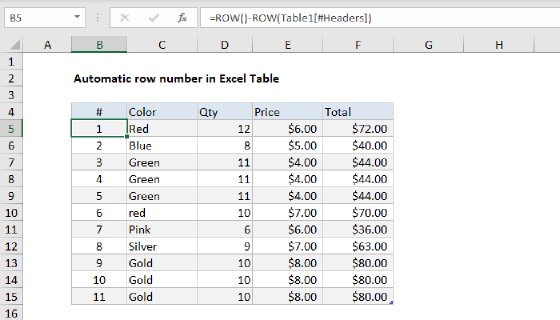
If you need to add automatic row numbers to an Excel Table, you can't use the SEQUENCE function, because dynamic array formulas can't spill inside a table. However, you can use a special formula based on the ROW function like this:
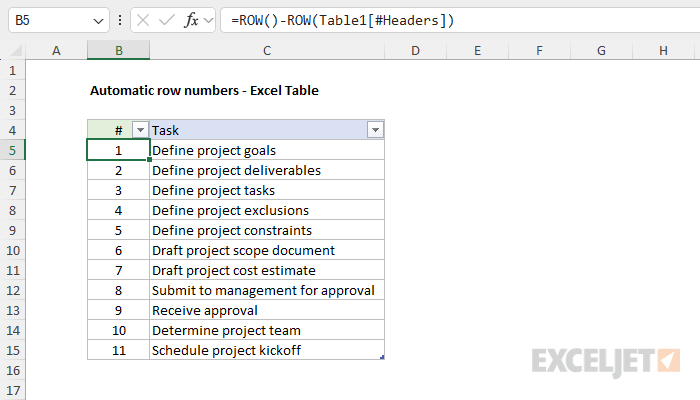
=ROW()-ROW(Table1[#Headers])
In this formula, the required offset is calculated based on the row number of the table header. In the worksheet shown, the header is in row 4. However, if the table exists at (or is moved to) another location, the formula will continue to work correctly. And because the formula is entered in a table column, Excel copies it down automatically when new rows are added to the table.
See this article for a detailed explanation.
Row numbers for a named range
The approach for creating sequential row numbers in a table can be adapted to work with a named range like this:
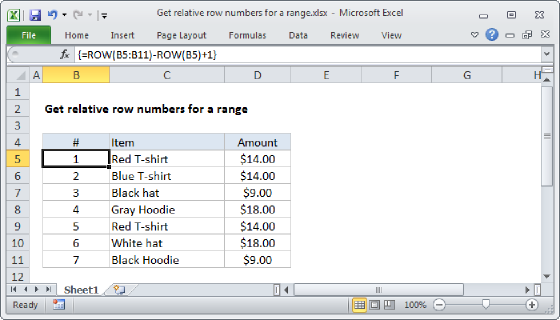
=ROW()-ROW(INDEX(data,1,1))+1
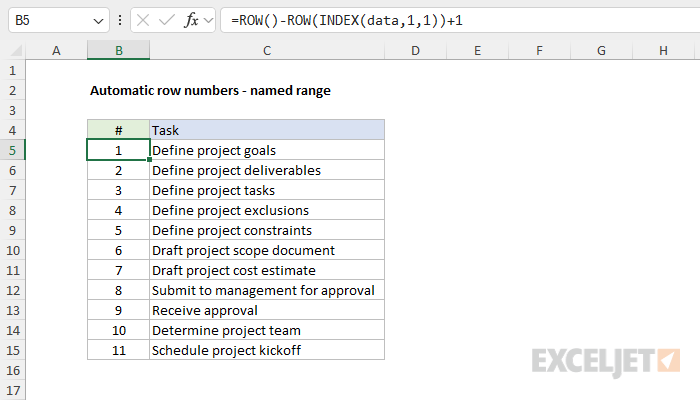
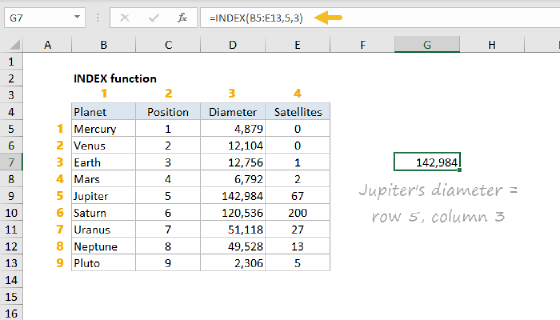
Here, we are working with a single named range called data (B5:C15). To calculate the required offset, we use INDEX to get the location of the first cell in the range, then feed that result into the ROW function:
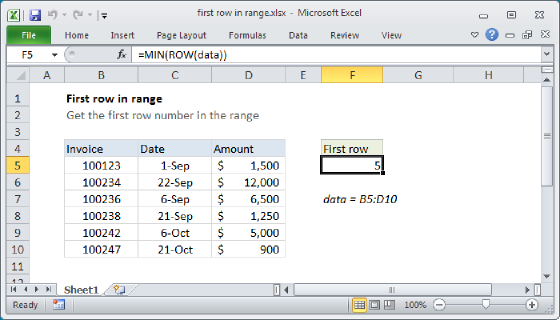
ROW(INDEX(data,1,1))
We pass the named range data into INDEX and request the cell at row 1, column 1. In other words, we are asking INDEX for the first (upper left) cell in the range. INDEX returns that cell as an address, and the ROW function returns the row number of that cell, which is used as the offset value explained above. The advantage of this formula is that it is portable. It won't break when the formula is moved, and it will work with any named range.
Which formula should you use?
The best formula depends on your version of Excel and on your data:
- In Excel 365, use SEQUENCE with a trim reference. It numbers every row in the list, including blank rows.
- In Excel 2021 and Excel 2024, use SEQUENCE with COUNTA. If the list might contain blank rows, use the XMATCH formula instead.
- If the list is created by formulas that return empty strings, use the XMATCH formula, in any version of Excel that has SEQUENCE.
- In an Excel Table, use ROW with the table header,
=ROW()-ROW(Table1[#Headers]). - In Excel 2019 and earlier, use ROW copied down the column, or the named range version if rows might be added above the list.