Purpose
Get standard deviation of population
Return value
Estimated standard deviation
Syntax
=STDEVP(number1, [number2], ...)- number1 - First number or reference in the sample.
- number2 - [optional] Second number or reference.
Microsoft docs
Using the STDEVP function
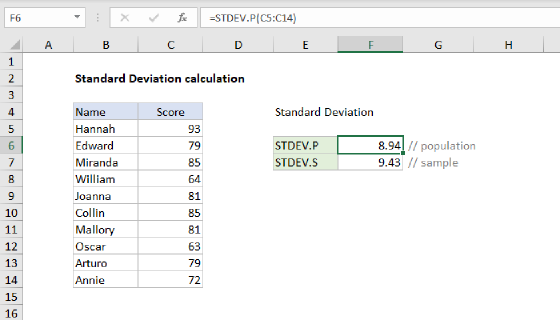
The STDEVP function calculates the standard deviation for an entire population. Standard deviation is a measure of how much variance there is in a set of numbers compared to the average (mean) of the numbers. The STDEVP function is meant to estimate standard deviation for an entire population. If data represents a sample, use the STDEV function.
Note: STDEVP has been replaced with a newer function called STDEV.P, which has identical behavior. Although STDEVP still exists for backwards compatibility, Microsoft recommends that people use the newer STDEV.P function instead.
Standard Deviation functions in Excel
The table below summarizes the standard deviation functions provided by Excel.
| Name | Data set | Text and logicals |
|---|---|---|
| STDEV | Sample | Ignored |
| STDEVP | Population | Ignored |
| STDEV.S | Sample | Ignored |
| STDEV.P | Population | Ignored |
| STDEVA | Sample | Evaluated |
| STDEVPA | Population | Evaluated |
Notes:
- STDEVP calculates standard deviation using the "n" method, ignoring logical values and text.
- STDEVP assumes your data is the entire population. When your data is a sample set only, calculate standard deviation using the STDEV function (or its more current replacement, the STDEV.S function).
- Numbers are supplied as arguments. They can be supplied as actual numbers, ranges, arrays, or references that contain numbers.
- The STDEVP function ignores logical values and text. If you want to include logical values and/or numbers as text in a reference, use the STDEVA function.