Summary
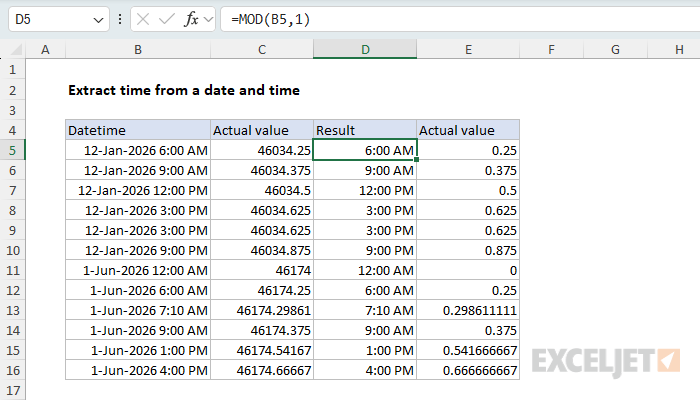
To extract the time from a date that contains time (also called a "datetime"), you can use a formula based on the MOD function. In the example shown, the formula in D5 is:
=MOD(B5,1)
The result is the time portion of the value in B5, 6:00 AM, which is the decimal value 0.25. As the formula is copied down, the result is the time portion of each datetime in column B.
Generic formula
=MOD(A1,1)
Explanation
In this example, the goal is to extract the time portion of a date that contains time (also called a "datetime"). Since dates in Excel are serial numbers and times are fractional values of a day, the task is to extract the decimal portion of the serial number. This is easy to do with the MOD function, and other methods mentioned below. Note that if you are comparing extracted times to other time values, there is a subtle floating point precision issue you should be aware of.
Table of contents
- How Excel handles dates and times
- Using MOD to extract time
- Other methods to extract time
- Floating point precision issue
- Workaround: use TIME or ROUND
How Excel handles dates and times
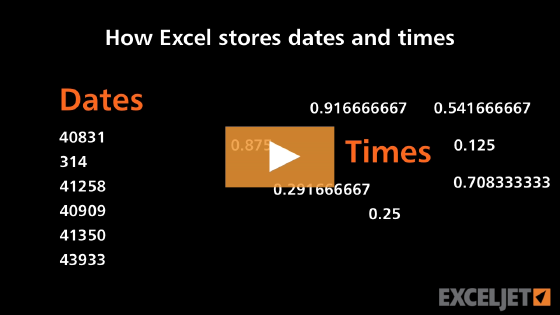
Excel handles dates and times using a system in which dates are serial numbers and times are fractional values of a day. For example, June 1, 2000 12:00 PM is represented in Excel as the number 36678.5, where 36678 is the date (June 1, 2000) and .5 is the time (12:00 PM). Since 12:00 PM is exactly halfway through a day, Excel represents it as 0.5. Likewise, 6:00 AM is 0.25 (one quarter of a day) and 6:00 PM is 0.75 (three quarters of a day). In other words, the time value in a "datetime" is the decimal portion of the number.
Using MOD to extract time
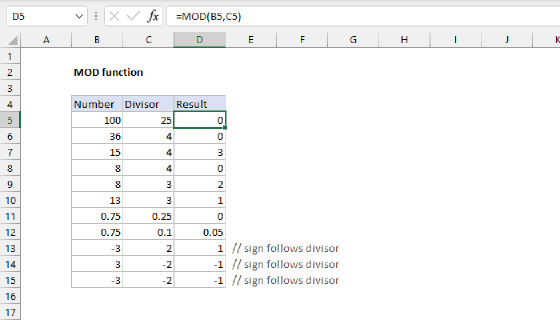
The MOD function returns the remainder from division. The first argument is the number and the second is the divisor. Here are a few examples:
=MOD(5,2) // returns 1
=MOD(7,5) // returns 2
If you use MOD with a divisor of 1, the result will be the decimal part of the number, if any, because every whole number can be evenly divided by itself. For example:
=MOD(3.5,1) // returns 0.5
=MOD(3.125,1) // returns 0.125
In short, =MOD(number,1) returns just the fractional part of a number, discarding the integer portion, so it's a convenient way to extract time from a date.
If you use this formula to strip the time from a date + time, you'll need to apply a suitable number format to display as time.
Other methods to extract time
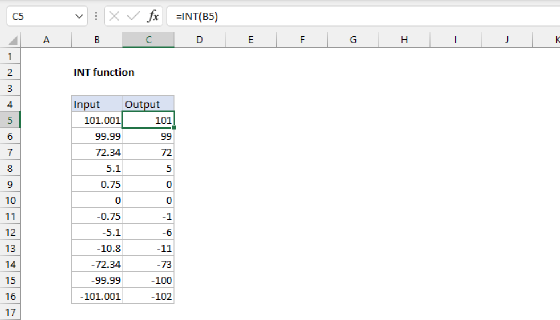
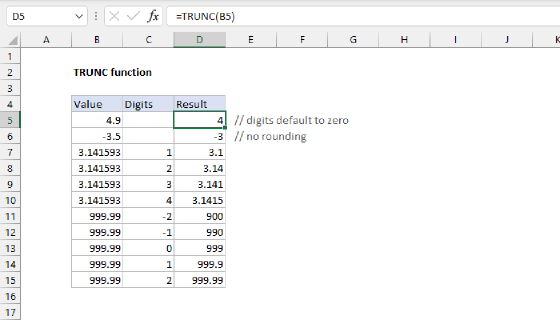
What's nice about MOD is that it's a simple one-function solution. However, there are other ways to extract time from a datetime. The most common alternatives subtract the integer (date) portion from the original value using the INT function or the TRUNC function:
=B5-INT(B5)
=B5-TRUNC(B5)
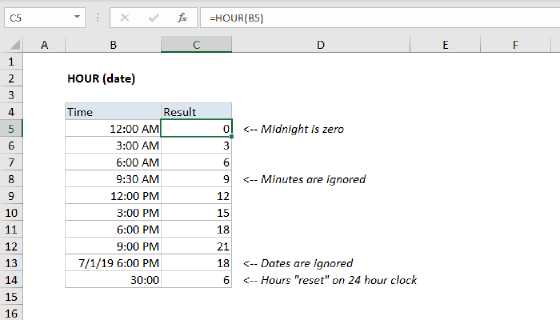
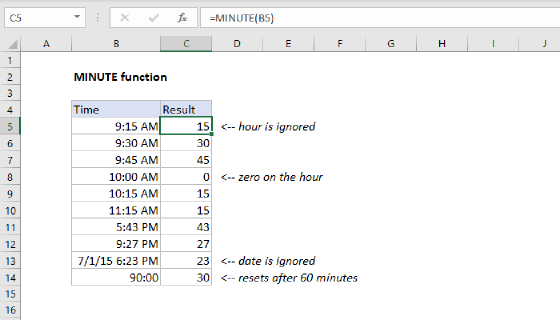
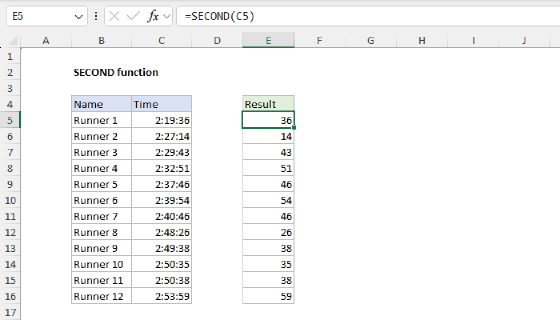
Both formulas work the same way: they calculate the date portion and subtract it from the datetime, leaving just the time. Another option is to rebuild the time from its components using TIME, HOUR, MINUTE, and SECOND:
=TIME(HOUR(B5),MINUTE(B5),SECOND(B5))
This approach extracts each time component as an integer, then reassembles them into a time value. This is a more verbose formula, but it has the advantage of avoiding the floating-point precision issue described below.
Floating point precision issue
The MOD formula works well for displaying extracted times, but there's a subtle gotcha you should know about. Because of the way computers handle decimal numbers (known as floating point arithmetic), the result from MOD may not be exactly equal to the same time created with the TIME function. This can cause problems when comparing extracted times.
For example, say you have a datetime like October 20, 2024, 4:00 PM in cell A1. If you extract the time with MOD and compare it to 4:00 PM created with TIME, you might expect them to be equal:
=MOD(A1,1)=TIME(16,0,0) // may return FALSE!
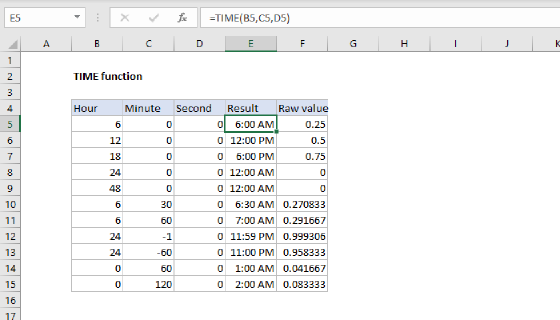
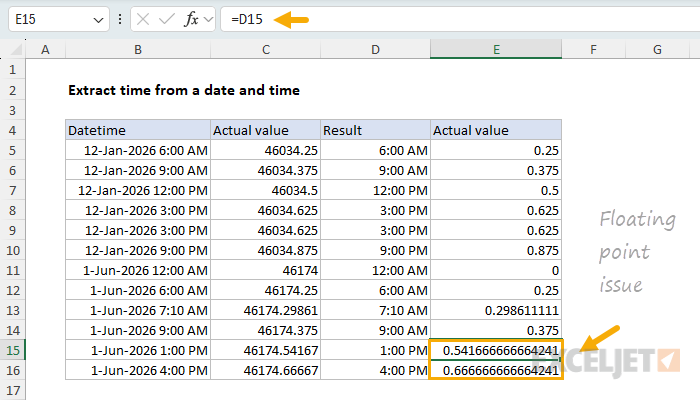
The result may be FALSE because MOD returns something like 0.6666666666642413 instead of 0.666666666666667 (the value TIME returns for 4:00 PM). The difference is tiny (invisible when formatted as time) but enough to break equality checks. You can see examples of these very slightly different values for 1:00 PM and 4:00 PM in cells E15 and E16, respectively:
This issue isn't specific to MOD. Any formula that uses subtraction to isolate the time portion will have the same problem, including formulas based on INT, TRUNC, and DATE:
=A1-INT(A1) // same issue
=A1-TRUNC(A1) // same issue
=A1-DATE(YEAR(A1),MONTH(A1),DAY(A1)) // same issue
Workaround: use TIME or ROUND
If you need to compare extracted times to other time values, here are two reliable solutions. The first option is to rebuild the time with TIME. The formula extracts the hour, minute, and second with HOUR, MINUTE, and SECOND, then rebuilds the time value using TIME:
=TIME(HOUR(B5),MINUTE(B5),SECOND(B5))
Because TIME builds the time from scratch using integer values, it avoids the precision issue entirely.
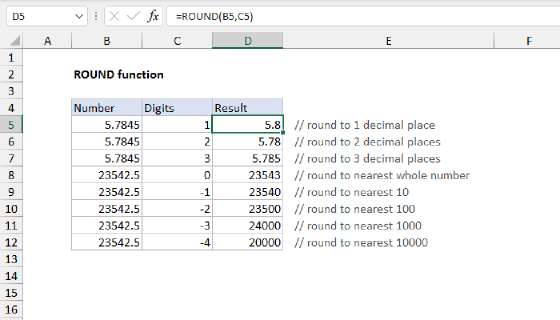
Another good option is to round before comparing values with the ROUND function. Rounding to about 10 decimal places is enough:
=ROUND(MOD(B5,1),10)=ROUND(TIME(16,0,0),10) // reliable comparison
Either approach will give you consistent results when comparing times.