Summary
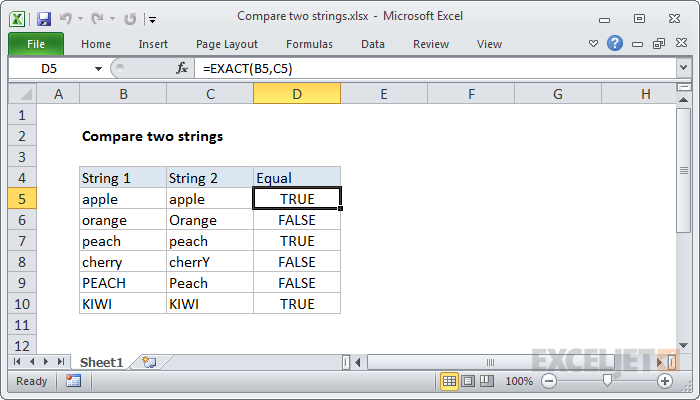
To compare two text strings in Excel to determine if they're equal, you can use the EXACT function. In the example shown, the formula in D5 is:
=EXACT(B5,C5)
Generic formula
=EXACT(text1, text2)
Explanation
By default, Excel is not case-sensitive. For example, with "APPLE" in A1, and "apple" in A2, the following formula will return TRUE:
=A1=A2 // returns TRUE
To compare text strings in a case-sensitive way, you can use the EXACT function. The Excel EXACT function compares two text strings, taking into account upper and lower case characters, and returns TRUE if they are the same, and FALSE if not.
If we use EXACT to compare A1 and A2 as above, the result is FALSE:
=EXACT(A1,A2) // returns FALSE
EXACT with IF
You can use this result inside the IF function to display a message or make a conditional calculation. For example, to display the message "Yes" for a match and "No" if not, you can use a formula like this:
=IF(EXACT(A2,A2),"Yes","No")