Using the RAND function
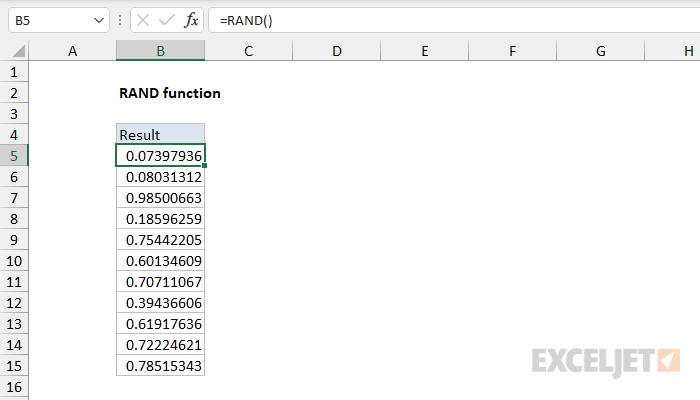
The RAND function returns a random decimal number between 0 and 1. For example, =RAND() will generate a number like 0.422245717. The RAND function takes no arguments. RAND recalculates when a worksheet is opened or changed.
RAND is a volatile function, and can cause performance issues in large or complex worksheets.
Examples
RAND takes no arguments:
=RAND() // returns number like 0.073979356
=RAND() // returns number like 0.080313118
Automatic recalculation
The RAND function will calculate a new result each time a worksheet is edited. To stop random numbers from being updated, copy the cells that contain RAND to the clipboard, then use Paste Special > Values to convert to a static result.
To get a single random number that doesn't change when the worksheet is calculated, enter =RAND() in the formulas bar and then press F9 to convert the formula into its result.
For random results that only change when you change a seed value, see Seeded Random Number Generator in Excel (Excel 365).
Multiple random numbers
To generate a set of random numbers in multiple cells, select the cells, enter =RAND() and press control + enter.
Random number between
RAND always returns a number between 0 and 1, but you can scale the result to any range. To generate a random decimal number between min and max, multiply by the size of the range, then add min:
=RAND()*(max-min)+min
Multiplying by max-min stretches the result into a number between 0 and max-min, and adding min shifts it up to run from min to max. For example, to generate a random number between 1 and 10:
=RAND()*(10-1)+1 // returns a number like 7.390252
To generate a random whole number between min and max, add 1 to the size of the range and use the INT function to remove the decimal part:
=INT(RAND()*(max-min+1))+min
The +1 is needed because there are max-min+1 possible results. For a die roll between 1 and 6, RAND()*6 returns a number from 0 up to (but never reaching) 6, INT turns that into a whole number from 0 to 5, and adding 1 shifts the result to 1 through 6:
=INT(RAND()*6)+1 // returns 1, 2, 3, 4, 5, or 6
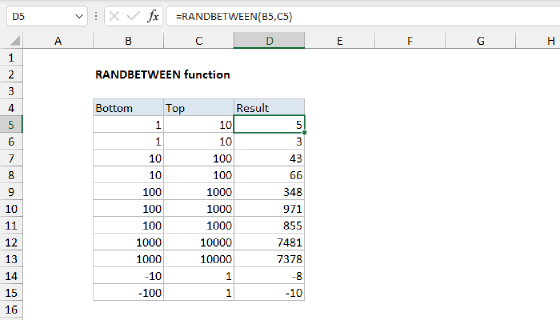
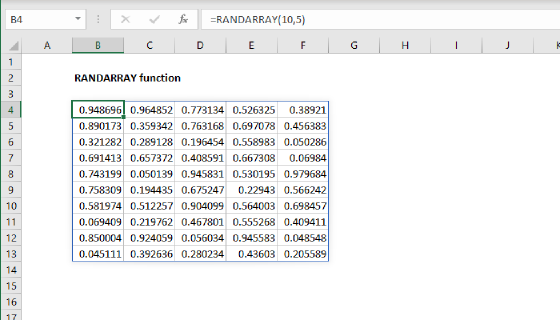
In practice, you won't often need to scale RAND yourself. The RANDBETWEEN function returns random whole numbers between two values, and in Excel 365, the RANDARRAY function takes min and max arguments for decimals or whole numbers:
=RANDBETWEEN(1,6) // random whole number between 1 and 6
=RANDARRAY(1,1,1,10) // random decimal number between 1 and 10
Scaling is still useful when your random numbers come from a source without min and max arguments. See Scaling random numbers to a range for this approach with a seeded random number generator, including dates and random items from a list.
Notes
- The RAND function takes no arguments.
- RAND recalculates whenever a worksheet is opened or changed.