Summary
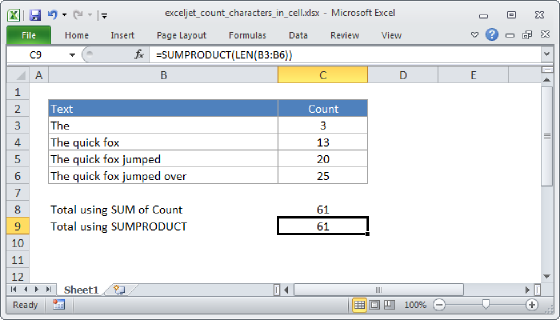
To count the total characters in a cell, you can use the LEN function. In the example shown, the formula in cell C5, copied down, is:
=LEN(B5)
The result in C5 is 3, which is the total number of characters in cell B5.
Generic formula
=LEN(a1)
Explanation
The LEN function is fully automatic. In the example, the formula in the active cell is:
=LEN(B5)
The LEN function simply counts all characters that appear in a cell. All characters are counted, including space characters, as you can see in cell C9.
Numbers
Numbers in Excel (including dates, times, currency, etc.) are often formatted with a number format. It's important to understand that the characters that makeup numbers are counted in their raw form (i.e. number formatting is not included). For example, because Excel dates are serial numbers, the result in cell C11 is 5, since the date in B11 is actually the number 42005.