
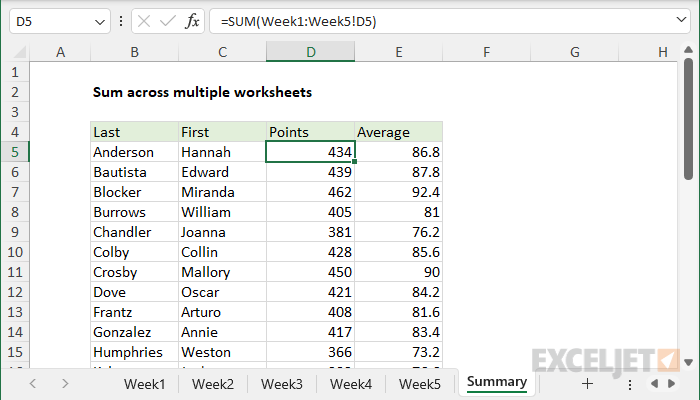
A 3D reference refers to the same cell or range on a group of sequential worksheets. In the example shown, the formula in D5 is:
=SUM(Week1:Week5!D5)
The result is the sum of cell D5 on the five sheets, Week1 through Week5. Without a 3D reference, you would list each sheet separately, and the formula would grow with every sheet you add:
=SUM(Week1!D5,Week2!D5,Week3!D5,Week4!D5,Week5!D5)
Note: Microsoft spells the term "3-D reference".
Syntax
A 3D reference works like a range, but one level up. A range puts a colon between the first and last cell. A 3D reference puts a colon between the first and last sheet, followed by an exclamation point and the cell or range to use on each sheet:
=SUM(Week1:Week5!D5) // sum D5 on five sheets
=SUM(Week1:Week5!D5:D16) // sum D5:D16 on five sheets
Sheet names with spaces
Like any reference to a sheet whose name contains a space, a 3D reference needs single quotes:
=Sheet1!A1 // no space, works
=Sheet 1!A1 // space, won't work
='Sheet 1'!A1 // space in quotes, works
In a 3D reference, the quotes go around the whole span of sheets, not around each sheet name. For five sheets named "Week 1" through "Week 5":
=SUM('Week 1:Week 5'!D5) // works
=SUM('Week 1':'Week 5'!D5) // returns #NAME?
Entering a 3D reference
The easiest way to enter a 3D reference is to point and click. Start the formula, click the first sheet tab, hold down Shift and click the last sheet tab, then select the cell or range and press Enter. Excel writes the reference for you, adding quotes if a sheet name contains a space. For a quick demo, watch this short video: How to create 3D references.
Sheet order matters
A 3D reference reads the same address on every sheet, so it only makes sense when the sheets share the same layout. It includes every sheet between the first and last sheet in the tab order, whatever the sheets are named. Insert or move a sheet into that span and the formula includes it. Move a sheet out and the formula drops it.
That makes a 3D reference easy to extend. One common setup puts two empty sheets named Start and End on either side of the data sheets:
=SUM(Start:End!D5)
Any sheet you place between Start and End is included in the total.
Functions that work with 3D references
Most functions that summarize a list of numbers accept a 3D reference: SUM, AVERAGE, COUNT, COUNTA, MAX, MIN, PRODUCT, MEDIAN, LARGE, SMALL, RANK, and statistical functions like STDEV.S and VAR.S. CONCAT, TEXTJOIN, and SHEETS work too. So do VSTACK, HSTACK, TOCOL, and TOROW, which makes the workaround below possible.
However, many common functions return #VALUE! or #REF! when given a 3D reference:
- COUNTIF, SUMIF, COUNTIFS, SUMIFS, and the other functions in this group
- SUMPRODUCT, SUBTOTAL, and AGGREGATE
- Lookup functions like INDEX, MATCH, VLOOKUP, and XLOOKUP
- Dynamic array functions like FILTER, UNIQUE, and SORT
- COUNTBLANK, MODE.SNGL, ROWS, COLUMNS, and TRIMRANGE
In addition, Excel won't accept a trim reference like Week1:Week5!D5:.D100 at all, and you can't do math on a 3D reference directly: =SUM(Week1:Week5!D5:D16*2) returns #REF!. See below for a workaround.
VSTACK workaround
A good workaround for these limits is the VSTACK function, which turns a 3D reference into an ordinary array that other functions can use. For example, to count scores over 90 on all five sheets:
=SUM(--(VSTACK(Week1:Week5!D5:D16)>90))
This formula counts with Boolean logic because COUNTIF won't accept VSTACK directly. COUNTIF, SUMIF, and the other functions in this group require a range, and VSTACK returns an array.
Confusingly, the same functions will work if you let VSTACK spill onto the worksheet first. A spill range is a range, so COUNTIF accepts a reference to it. With VSTACK in cell H5:
=VSTACK(Week1:Week5!D5:D16) // in H5
=COUNTIF(H5#,">90") // count scores over 90
H5# holds exactly the values VSTACK returns, but COUNTIF only cares that it refers to cells on the worksheet.
For a complete example, see Combine data in multiple worksheets. VSTACK is available in Excel 2024+ and Excel 365. In older versions, the usual workaround is the INDIRECT function with a list of sheet names, as in Sum across multiple worksheets with criteria.