=TEXTJOIN(delimiter, ignore_empty, text1, [text2], ...)- delimiter - Text to place between each value.
- ignore_empty - TRUE to skip empty cells and empty strings, FALSE to include them.
- text1 - The first value, range, or array to join.
- text2 - [optional] More values, ranges, or arrays to join.
Using the TEXTJOIN function
The TEXTJOIN function joins text from cells, ranges, and other values into one text string, with a delimiter of your choice between each value. It's the most convenient way to join text in Excel when you have several values to work with: give TEXTJOIN a range, and it joins every cell in the range, skipping empty cells if you like. For a few values, the ampersand (&) operator works too, and the CONCAT function joins a range with no delimiter. See TEXTJOIN vs CONCAT vs the & operator below.
Functions like FILTER and UNIQUE spill a list into many cells. TEXTJOIN does the opposite: it collapses a range or array into one text value. On its own, it joins the cells in a row, like the parts of a name or an address. Inside a larger formula, it's usually the last step: FILTER, UNIQUE, SORT, or TEXTSPLIT builds a list, and TEXTJOIN puts the list in one cell. The examples below start with plain joins, then show TEXTJOIN at the end of a formula.
In Excel, "concatenate" means the same thing as "join". To concatenate values is to join them together into one text string. That's why the & operator is called the concatenation operator, and why Excel has functions named CONCATENATE and CONCAT, in addition to the TEXTJOIN function.
Key features
- Joins values from cells, ranges, arrays, and text constants into one text string, in the order given.
- The delimiter goes between each pair of values. It can be a comma, a space, an empty string (""), or a line break (CHAR(10)).
- With ignore_empty set to TRUE, TEXTJOIN skips empty cells and empty strings returned by formulas. It doesn't skip spaces or zeros.
- Reads a 2D range row by row.
- Numbers lose their formatting: dates become serial numbers and 10% becomes 0.1. Use the TEXT function to control the format.
- Returns a single value; does not spill.
Table of contents
- Basic examples
- Build a product code
- Join names and skip empty parts
- Join values with line breaks
- Join dates and numbers with formatting
- Join values that meet criteria
- List matching column headers
- Unique values in one cell
- Join values by group
- Clean up a comma-separated list
- TEXTJOIN vs CONCAT vs the & operator
- Notes
Basic examples
The first argument is the delimiter, and the second, ignore_empty, controls what happens to empty cells:
=TEXTJOIN(", ",TRUE,range) // comma and space, skip empty cells
=TEXTJOIN(", ",FALSE,range) // keep empty cells (extra delimiters)
=TEXTJOIN("",TRUE,range) // join with no delimiter
TEXTJOIN accepts any mix of cells, ranges, and text values:
=TEXTJOIN(" ",TRUE,A1,B1:D1) // a cell and a range
=TEXTJOIN("-",TRUE,"a","b","c") // returns "a-b-c"
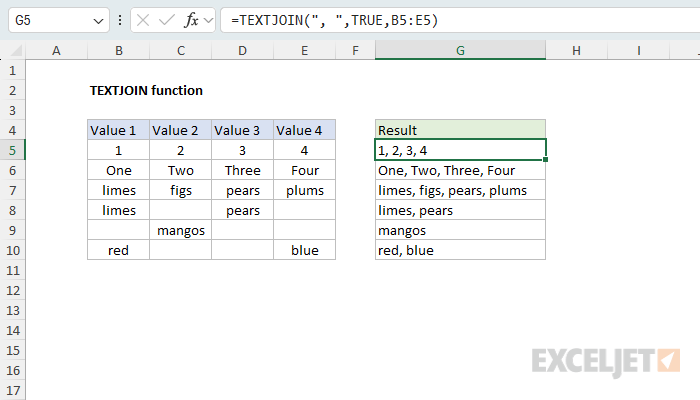
In the worksheet shown above, TEXTJOIN joins the four values in each row with a comma and a space. The formula in G5, copied down, is =TEXTJOIN(", ",TRUE,B5:E5). Because ignore_empty is TRUE, the empty cells in rows 8 to 10 are skipped, and no extra commas appear. Numbers come through as text, so the first row returns "1, 2, 3, 4".
Build a product code
In the worksheet below, the goal is to build a product code from three parts: type, color, and size. The formula in F5, copied down, is:
=TEXTJOIN("-",FALSE,B5:D5)
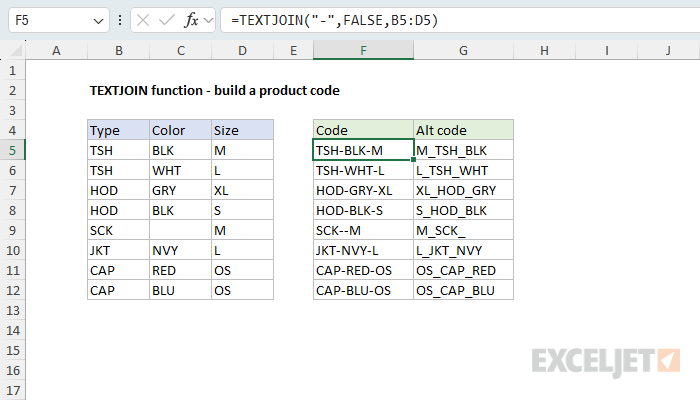
TEXTJOIN joins the three cells in each row with a hyphen (-) between each part, in the order the columns appear, so "TSH", "BLK", and "M" become "TSH-BLK-M". The second argument, ignore_empty, is FALSE, so TEXTJOIN keeps empty cells. The color in C9 is missing, so the code in F9 has two hyphens in a row: "SCK--M". For a code, that's useful, because the empty slot shows that a part is missing. With TRUE, the result would be "SCK-M", which looks like a complete code. The examples below show how to skip empty cells when that's what you want.
To join the parts in a different order, give TEXTJOIN each cell as a separate argument (text1, text2, text3), in the order you want. The formula in G5 puts the size first and uses an underscore (_) as the delimiter:
=TEXTJOIN("_",FALSE,D5,B5,C5)
The result in G5 is "M_TSH_BLK". In row 9, the missing color is now the last part, so the code ends with an underscore: "M_SCK_".
Join names and skip empty parts
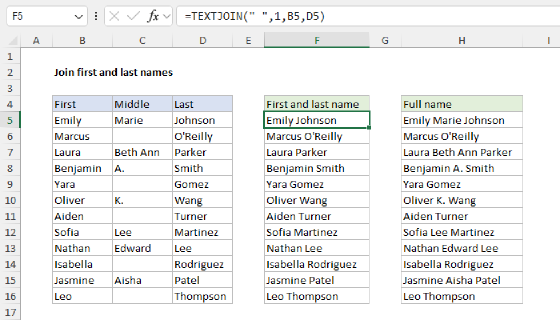
In the worksheet below, the goal is to join the parts of a name into a full name, with a space between each part. Some names have no middle name or title. The formula in G5, copied down, is:
=TEXTJOIN(" ",TRUE,E5,B5:D5)
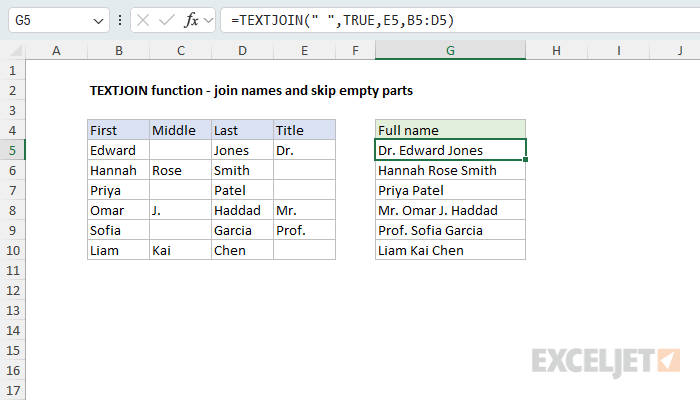
As with the product codes above, the title in column E comes first because it's the first value in the formula. Ignore_empty is TRUE, so an empty middle name or title adds nothing. Compare the & operator, which adds a space for every part, empty or not:
=B5&" "&C5&" "&D5 // returns "Edward Jones" (two spaces)
For more ways to join names, see Join first and last name.
Join values with line breaks
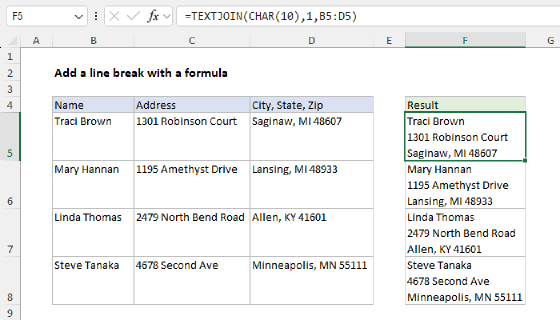
To put each value on its own line, use CHAR(10) as the delimiter. CHAR(10) returns the line break character, the same character that Alt + Enter inserts when you type in a cell. In the worksheet below, the goal is to build a mailing label from the parts of an address. The formula in G5, copied down, is:
=TEXTJOIN(CHAR(10),TRUE,B5:E5)
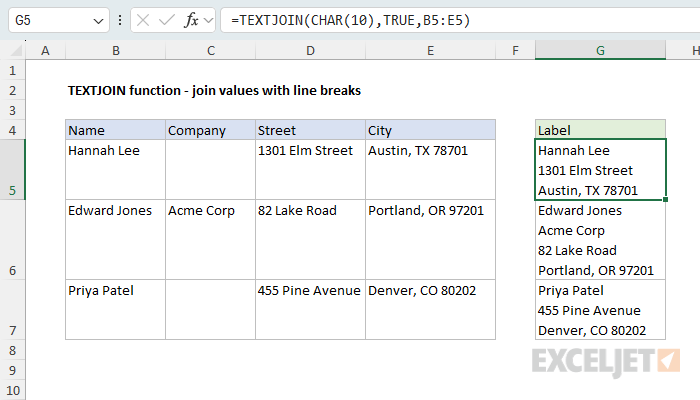
Note that line breaks only work when Wrap Text is turned on for the result cells (Home > Alignment > Wrap Text). Without it, Excel shows the text on one line. Only Edward Jones has a company name, and because ignore_empty is TRUE, the other labels don't get an empty line. For more details, see Add a line break with a formula. The video How to concatenate with line breaks builds the same kind of label with the & operator.
Join dates and numbers with formatting
When TEXTJOIN joins numbers, the number formatting is lost. Dates are the biggest surprise, because dates are serial numbers underneath. In the worksheet below, the dates in column B are formatted to display normally, but the formula in D5 returns serial numbers. The formula in E5 uses the TEXT function to fix the problem:
=TEXTJOIN(", ",TRUE,TEXT(B5:B8,"mmm d"))
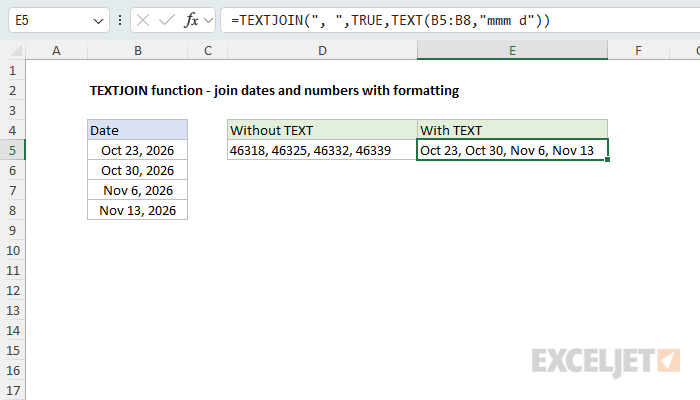
TEXT converts all four dates at once, because it accepts a range and returns an array of text values, which TEXTJOIN then joins: "Oct 23, Oct 30, Nov 6, Nov 13". Other numbers have the same problem: 10% joins as 0.1, and $29.95 joins as 29.95. Use a matching format code, like TEXT(range,"0%") or TEXT(range,"$0.00"). TEXT uses the same codes as custom number formats, so any format you can apply to a cell works here. One catch: TEXT formats an empty cell as zero ("$0.00"), so using TRUE for ignore_empty won't work. To skip empty cells, test for them first:
=TEXTJOIN(", ",TRUE,IF(range="","",TEXT(range,"$0.00")))
For more on formatting values inside text, see Join date and text.
Join values that meet criteria
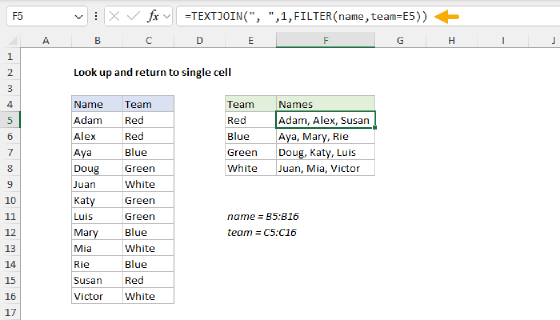
In the worksheet below, the goal is to list the members of each team in one cell. In other words, we want to join values that meet a specific condition. The formula in G5, copied down, is:
=TEXTJOIN(", ",TRUE,FILTER($B$5:$B$16,$C$5:$C$16=F5))
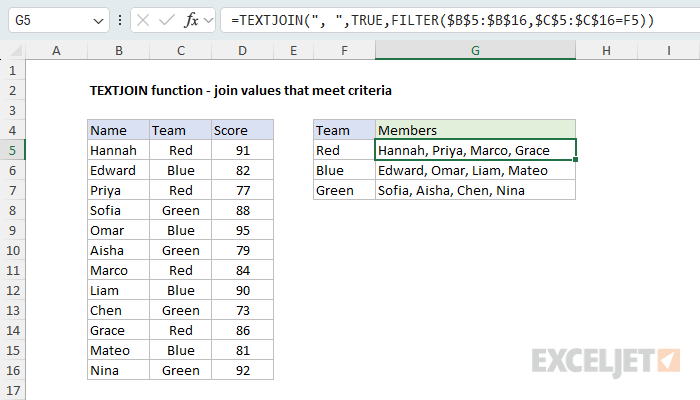
The FILTER function returns the names where the team matches F5, and TEXTJOIN joins them into one cell. The ranges are absolute so they stay fixed when the formula is copied down.
When no names match, FILTER returns a #CALC! error, and so does TEXTJOIN. To trap this error and display something else instead, use FILTER's if_empty argument:
=TEXTJOIN(", ",TRUE,FILTER($B$5:$B$16,$C$5:$C$16=F5,"None"))
To apply more than one condition, multiply the conditions together with Boolean logic. With "Red" in F5, the formula below lists the Red team members with a score of 85 or more and returns "Hannah, Grace":
=TEXTJOIN(", ",TRUE,FILTER($B$5:$B$16,($C$5:$C$16=F5)*($D$5:$D$16>=85)))
You might think the AND function would work here. But functions like AND and OR aggregate values to a single result, so they don't work in array formulas that must return multiple values.
FILTER can also join items built from more than one column. This formula adds each score to the name and returns "Hannah (91), Priya (77), Marco (84), Grace (86)":
=TEXTJOIN(", ",TRUE,FILTER($B$5:$B$16&" ("&$D$5:$D$16&")",$C$5:$C$16=F5))
Excel 2019 has TEXTJOIN but not FILTER. There, use IF instead, entered as an array formula with Control + Shift + Enter. IF returns a name where the team matches and an empty string where it doesn't, and TRUE skips the empty strings:
=TEXTJOIN(", ",TRUE,IF($C$5:$C$16=F5,$B$5:$B$16,""))
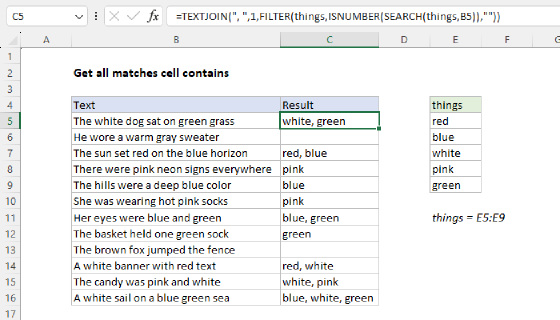
For more details, see Look up and return to single cell and Get all matches cell contains.
List matching column headers
FILTER can also run across a row. In the worksheet below, the goal is to list the store or stores with the lowest price for each item. The formula in H5, copied down, is:
=TEXTJOIN(", ",TRUE,FILTER($C$4:$F$4,C5:F5=MIN(C5:F5)))
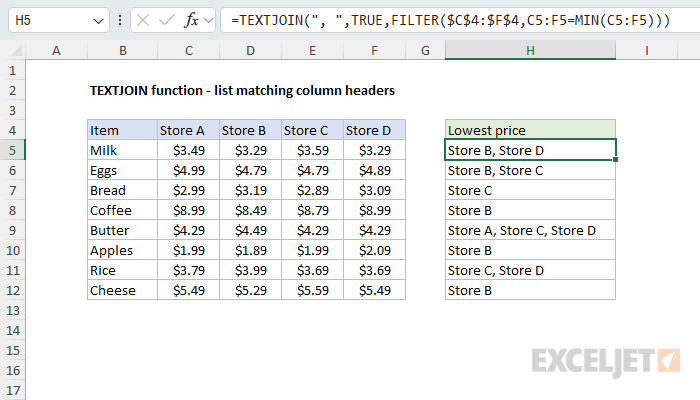
The MIN function returns the lowest price in the row, and comparing the row to it returns TRUE for each store with that price. FILTER returns the matching store names from the header row, which stays fixed as the formula is copied down, and TEXTJOIN joins them. The same pattern works for any condition across a row, like every month over a target.
Lookup functions like XLOOKUP return only the first match, so they would report Store B for milk and hide the tie with Store D. If you don't care about the ties, you could use XLOOKUP by itself and skip TEXTJOIN and FILTER.
Unique values in one cell
To list the unique values in a range in one cell, combine TEXTJOIN with the UNIQUE function. In the worksheet below, the goal is to list each product once, in alphabetical order. The formula in E5 is:
=TEXTJOIN(", ",TRUE,SORT(UNIQUE(C5:C16)))
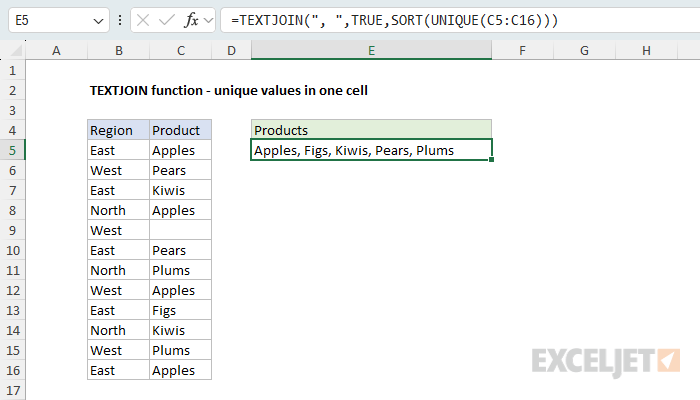
UNIQUE removes the duplicates, SORT puts the products in order, and TEXTJOIN joins them: "Apples, Figs, Kiwis, Pears, Plums". The empty cell in C9 needs no extra step. UNIQUE returns it as an empty value, and TRUE skips it; with FALSE, the result would get an extra comma. To list the unique products for one region, add FILTER:
=TEXTJOIN(", ",TRUE,SORT(UNIQUE(FILTER(C5:C16,B5:B16="West")))) // returns "Apples, Pears, Plums"
Join values by group
To join values for every group at once, in a summary table with one row per group, use the GROUPBY function with TEXTJOIN in a LAMBDA. The worksheet below uses the same data as Join values that meet criteria. The formula in F5 is:
=GROUPBY(C5:C16,B5:B16,LAMBDA(x,TEXTJOIN(", ",TRUE,x)),0,0)
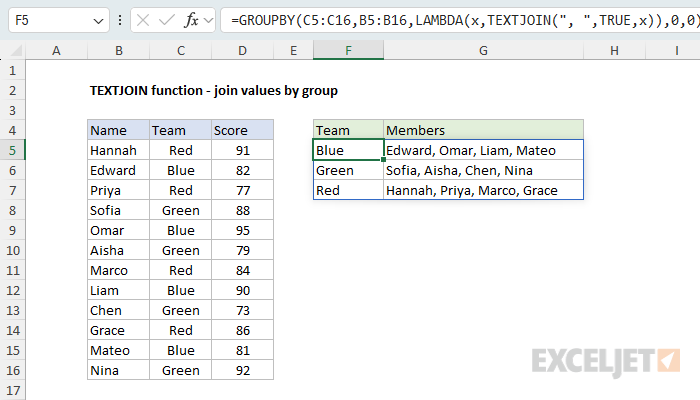
GROUPBY groups the names by team and passes each team's names to the LAMBDA as x, and TEXTJOIN joins them. The last two arguments turn off headers and the total row. The result spills into F5:G7, with the teams in alphabetical order. To sort the names in each group too, sort x before joining:
=GROUPBY(C5:C16,B5:B16,LAMBDA(x,TEXTJOIN(", ",TRUE,SORT(x))),0,0)
Either formula returns the entire table in one step and updates automatically when the source data changes.
The ARRAYTOTEXT function also works as the function argument, as in
=GROUPBY(C5:C16,B5:B16,ARRAYTOTEXT,0,0), but it always uses a comma and a space, and it keeps empty cells. GROUPBY is available in Excel 365. In Excel 2021 and 2024, list the teams with UNIQUE and use the FILTER formula from Join values that meet criteria.
Clean up a comma-separated list
TEXTJOIN is often the last step in a formula that splits text apart, works on the pieces, and joins them back together. In the worksheet below, each cell in column B holds a list of tags typed by hand, with stray spaces, duplicates, and mixed case. The goal is a clean, sorted list of unique values. The formula in D5, copied down, is:
=TEXTJOIN(", ",TRUE,SORT(UNIQUE(TRIM(TEXTSPLIT(B5,,",")))))
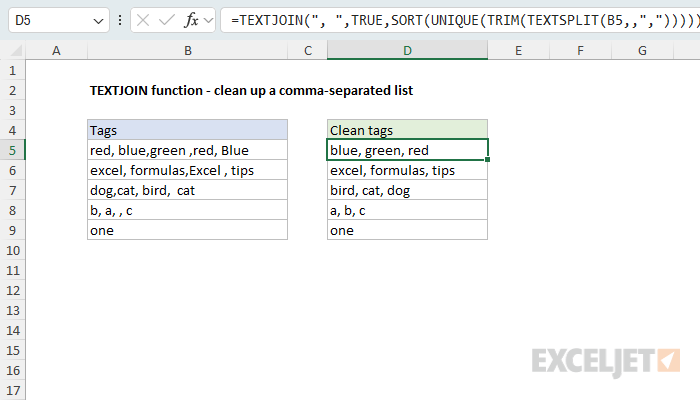
Working from the inside out, TEXTSPLIT splits the text at each comma, TRIM removes the extra spaces, UNIQUE removes duplicates, SORT puts the tags in order, and TEXTJOIN joins them with a comma and a space. UNIQUE is not case-sensitive, so "Blue" counts as a duplicate of "blue". In row 8, the extra comma creates an empty item, which TRUE skips.
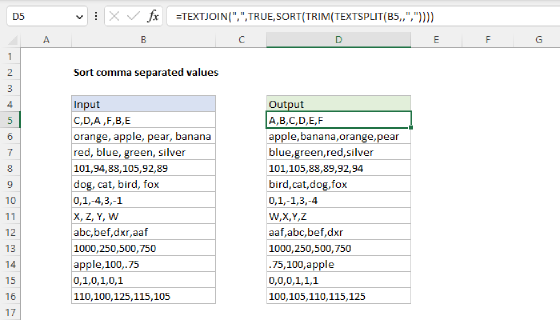
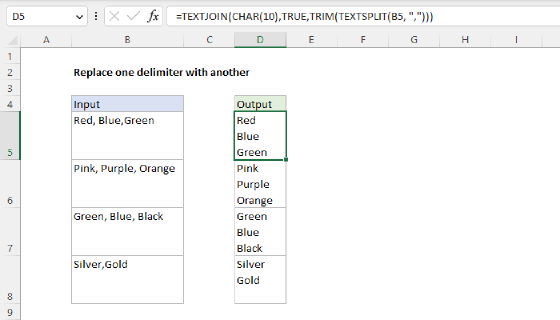
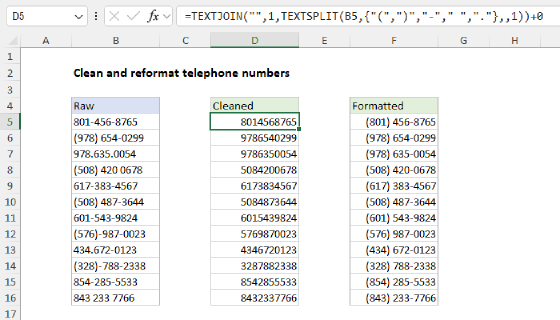
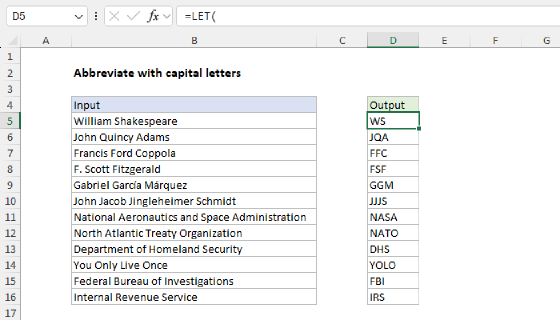
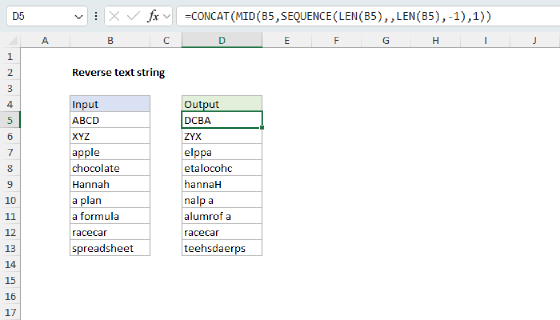
The same split, process, and join pattern appears in Sort comma separated values, Replace one delimiter with another, and Clean and reformat telephone numbers. To split text into characters instead, use MID(text,SEQUENCE(LEN(text)),1), as explained in Reverse text string.
TEXTJOIN vs CONCAT vs the & operator
Excel has three main ways to join text: the & operator, the CONCAT function, and TEXTJOIN. To illustrate how they differ, the worksheet below is set up to join the names all three ways. The formulas in F5, G5, and H5, copied down, are:
=B5&" "&C5&" "&D5 // & operator
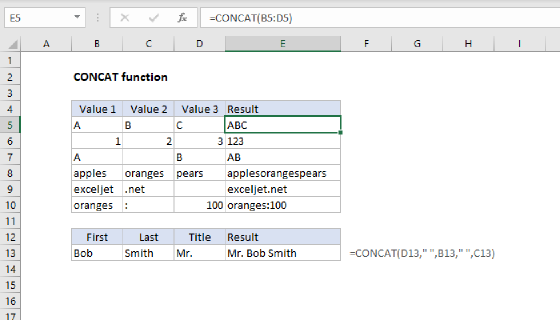
=CONCAT(B5:D5) // CONCAT
=TEXTJOIN(" ",TRUE,B5:D5) // TEXTJOIN
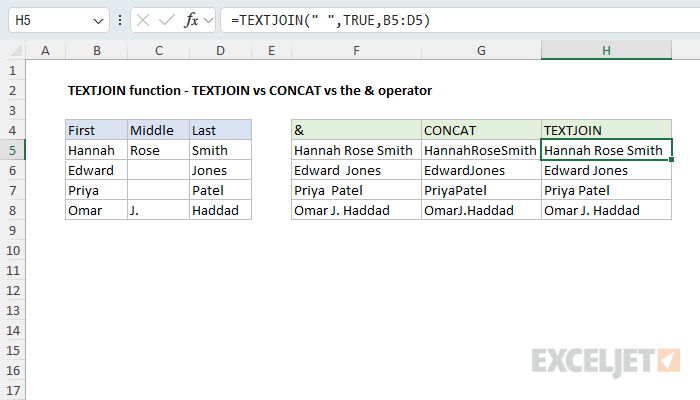
The & operator works in any version of Excel and is fine for a few values, but you have to add each delimiter yourself, and there is no automatic handling for empty cells: "Edward Jones" ends up with two spaces. CONCAT accepts a range but has no delimiter, so it runs the names together. TEXTJOIN accepts a range, adds the delimiter, and skips the empty middle names. In short:
- Use & to join a few values by hand.
- Use CONCAT to join a range with no delimiter.
- Use TEXTJOIN to join a range with a delimiter, or to skip empty cells.
One more difference: & works on arrays item by item, so =B5:B8&" "&D5:D8 spills one full name per row, while TEXTJOIN always returns one value. Given two ranges, =TEXTJOIN(" ",TRUE,B5:B8,D5:D8) returns all the first names, then all the last names. For more detail, see How to concatenate in Excel and CONCAT & TEXTJOIN.
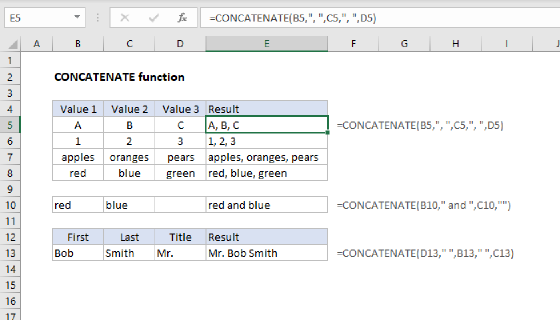
Excel also includes the CONCATENATE function, the precursor to CONCAT, for backward compatibility. If your version of Excel includes CONCAT and TEXTJOIN, there is no reason to use CONCATENATE.
Notes
- A result longer than 32,767 characters returns #CALC!. A full-column reference with ignore_empty set to FALSE, like
TEXTJOIN(",",FALSE,A:A), reaches the limit with commas alone. - If any value is an error, TEXTJOIN returns that error. To skip errors, use
TOCOL(range,2), or wrap the range in IFERROR:TEXTJOIN(", ",TRUE,IFERROR(range,"")). - Ignore_empty skips empty cells and empty strings (""), but not spaces or zeros. To skip zeros, filter them out first with
FILTER(range,range<>0). If ignore_empty is left empty, as inTEXTJOIN(", ",,range), TEXTJOIN treats it as TRUE. - Numbers join in General format, up to 15 significant digits. TRUE and FALSE join as the text "TRUE" and "FALSE".
- The result is always text, even when it looks like a number. To convert it to a number, add zero:
=TEXTJOIN("",TRUE,range)+0. - A 2D range is read row by row. To read it column by column, use
TOCOL(range,,TRUE). - The delimiter can be an array constant like
{",",";"}, used in turn. With ignore_empty set to TRUE, a skipped empty cell shifts the cycle, so use FALSE when the position matters. - TEXTJOIN returns one value and never spills. To get one result per row from a single formula, use BYROW:
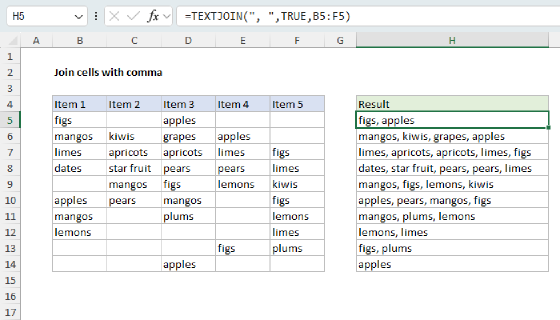
=BYROW(range,LAMBDA(r,TEXTJOIN(", ",TRUE,r))). - TEXTJOIN is available in Excel 2019+ and Excel 365. In Excel 2016 and earlier, it returns #NAME?. Use the & operator instead, or see Join cells with comma for a formula based on SUBSTITUTE and TRIM.