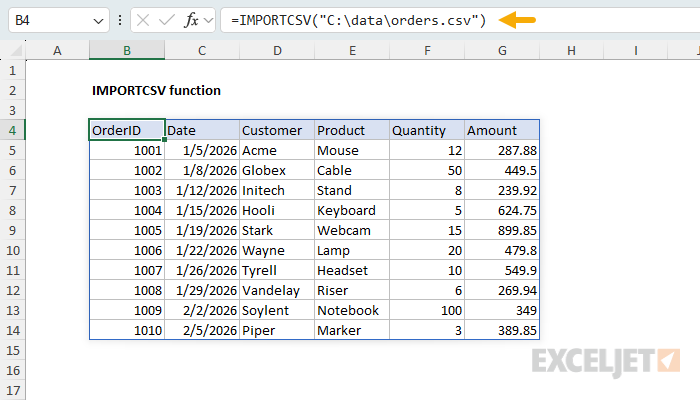
=IMPORTCSV(path, [skip_rows], [take_rows], [locale])- path - The local file path or URL of the CSV file to import.
- skip_rows - [optional] The number of rows to skip from the top. A negative value skips rows from the bottom.
- take_rows - [optional] The number of rows to return from the top. A negative value takes rows from the bottom.
- locale - [optional] The locale used to parse dates and numbers (e.g., "en-US", "de-DE"). Default is the operating system locale.
Using the IMPORTCSV function
The IMPORTCSV function imports data from a comma-separated (CSV) file into Excel and returns the result as a dynamic array that spills onto the worksheet. IMPORTCSV reads from a local file path or a URL. The delimiter is always a comma and the encoding is always UTF-8, so the only options are skip_rows, take_rows, and locale. For the most common kind of text import, this makes IMPORTCSV simple to use: point it at a CSV file and the data spills onto the worksheet.
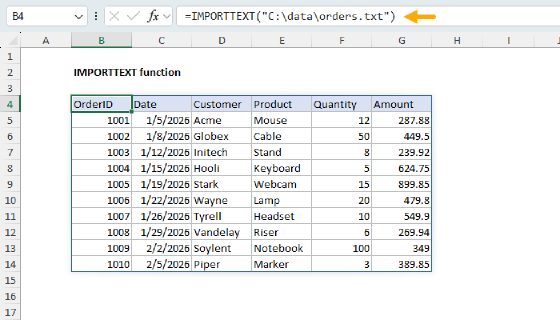
Excel provides two functions for importing delimited text files: IMPORTCSV and IMPORTTEXT. IMPORTCSV is the simpler variant, hardwired to import comma-delimited, UTF-8 encoded files only. If a file uses a different delimiter (tab, semicolon, pipe), a different encoding, or fixed-width columns, use the more robust IMPORTTEXT function instead.
Because IMPORTCSV can be combined with other Excel functions, it is a simple alternative to Power Query for light import work on data sets that are modest in size. Note that IMPORTCSV is different from most functions in that imported data does not refresh automatically. To pick up changes in the source file, click Refresh All on the Data tab.
As of September 2026, IMPORTCSV is available to Microsoft 365 subscribers on the Insiders Beta channel.
Key features
- Imports comma-delimited, UTF-8 encoded files (both are fixed defaults)
- Reads from local file paths or URLs
- Returns a dynamic array that spills onto the worksheet
- Skips or limits rows from the top or bottom of the file (negative values)
- Parses dates and numbers with an optional locale
- Does not auto-refresh; use Data > Refresh All to update
Table of contents
- Sample data
- Basic examples
- Import a CSV file
- Skip and limit rows
- Handle international files
- Combine with other functions
- Import from a URL
- Refresh or freeze imported data
- Notes
Sample data
The examples on this page use the sample data files below. Each file contains a small set of fictional orders. You can download them to follow along with the examples.
| File | Size | Download |
|---|---|---|
| orders.csv | 0.4 KB | link |
| orders-with-header-block.csv | 0.5 KB | link |
| orders-with-total.csv | 0.4 KB | link |
| orders-eu.csv | 0.4 KB | link |
The examples on this page use
C:\data\as a short placeholder for the file path. Replace this with the actual path to the downloaded files on your machine.
Basic examples
The minimum requirement is a file path. With no other arguments, IMPORTCSV imports the entire file:
=IMPORTCSV("C:\data\orders.csv") // import entire file
To skip the first row (typically a header):
=IMPORTCSV("C:\data\orders.csv",1) // skip first row
To import only the first 10 rows of a file:
=IMPORTCSV("C:\data\orders.csv",,10) // first 10 rows only
To import only the last 10 rows of a file:
=IMPORTCSV("C:\data\orders.csv",,-10) // last 10 rows only
Note that skip_rows and take_rows are the second and third arguments in IMPORTCSV. In IMPORTTEXT, the same options appear one position later, after delimiter.
Import a CSV file
The example below shows the most basic use of IMPORTCSV: importing a comma-delimited file with headers. The first few rows of orders.csv look like this:
OrderID,Date,Customer,Product,Quantity,Amount
1001,2026-01-05,Acme,Mouse,12,287.88
1002,2026-01-08,Globex,Cable,50,449.50
1003,2026-01-12,Initech,Stand,8,239.92
...
In the worksheet below, the formula in cell B4 imports the file:
=IMPORTCSV("C:\data\orders.csv")
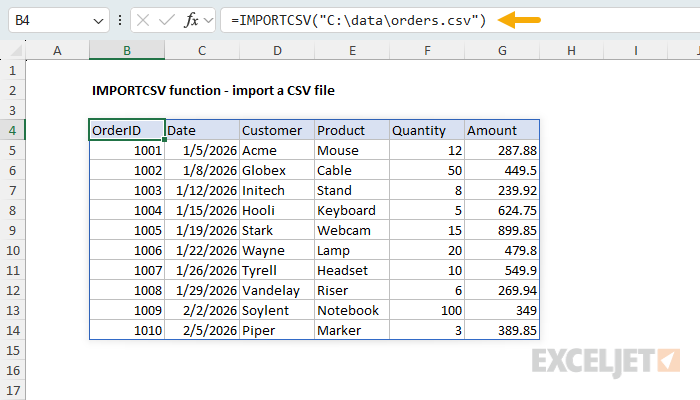
The result is a dynamic array of 11 rows by 6 columns that spills from B4. The first row contains the column headers from the file. Because the delimiter is hard-coded to a comma, there is nothing else to configure. The equivalent IMPORTTEXT formula requires a comma as the second argument: =IMPORTTEXT("C:\data\orders.csv",",").
Skip and limit rows
Use skip_rows to skip rows at the top of the file. This is useful when a file contains metadata or extra rows above the data. The file orders-with-header-block.csv has three metadata rows before the column headers:
Quarterly Orders Export
Generated: 2026-02-06
Source: ERP System
OrderID,Date,Customer,Product,Quantity,Amount
1001,2026-01-05,Acme,Mouse,12,287.88
1002,2026-01-08,Globex,Cable,50,449.50
...
The formula in B4 skips the first three rows so the import starts at the column headers:
=IMPORTCSV("C:\data\orders-with-header-block.csv",3)
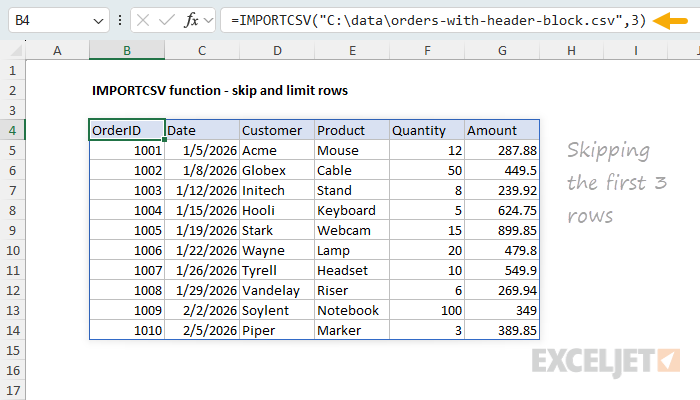
To skip rows at the bottom of the file (like a totals row), supply a negative skip_rows value. The file orders-with-total.csv ends with a "Total" row:
OrderID,Date,Customer,Product,Quantity,Amount
1001,2026-01-05,Acme,Mouse,12,287.88
1002,2026-01-08,Globex,Cable,50,449.50
...
1010,2026-02-05,Piper,Marker,3,389.85
Total,,,,,4540.39
The formula in B4 skips the last row by providing -1 for skip_rows:
=IMPORTCSV("C:\data\orders-with-total.csv",-1)
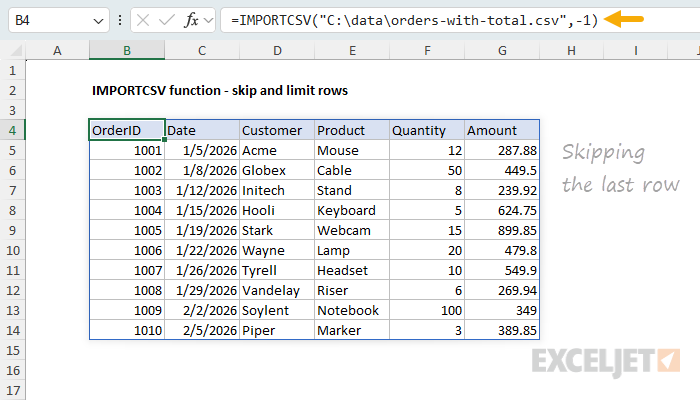
The take_rows argument limits how many rows are returned. To extract just the first 5 rows of a file:
=IMPORTCSV("C:\data\orders.csv",,5)
A negative take_rows value takes rows from the bottom instead of the top. To return the last 3 rows:
=IMPORTCSV("C:\data\orders.csv",,-3)
Handle international files
Files created outside the United States often use different date and number conventions. The sample file orders-eu.csv uses DD.MM.YYYY dates and commas as decimal separators. Because the comma is also the column delimiter, the Amount values are wrapped in quotes, following the standard CSV convention for values that contain the delimiter:
OrderID,Date,Customer,Product,Quantity,Amount
1001,05.01.2026,Acme,Mouse,12,"287,88"
1002,08.01.2026,Globex,Cable,50,"449,50"
1003,12.01.2026,Initech,Stand,8,"239,92"
...
Supply the locale argument so IMPORTCSV parses the dates and numbers correctly. Note that this formula contains one extra comma, explained below:
=IMPORTCSV("C:\data\orders-eu.csv",,,,"fr-fr")
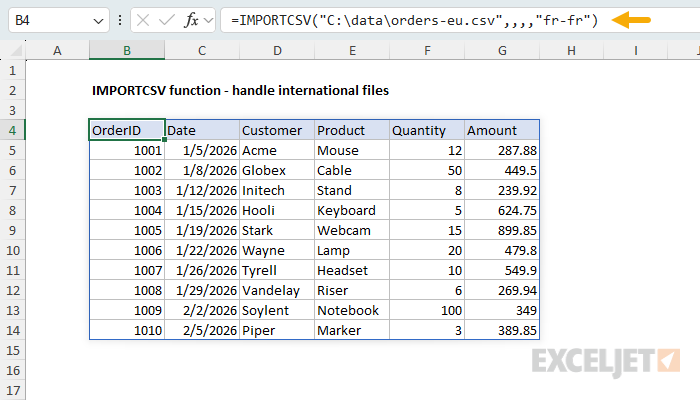
Note (August 2026): the latest Insiders Beta builds insert a new fourth argument, formatting options, before locale. This argument is not yet documented by Microsoft. The extra comma in the formula above skips this argument so that the locale code lands in the correct position. With the documented four-argument signature, the formula would be
=IMPORTCSV("C:\data\orders-eu.csv",,,"fr-fr"). I will update this page when the new argument is officially documented.
Without locale (on a machine running in English in the United States) the Amount column would import as text (because 287,88 is not a valid number in US format) and dates would not be recognized. With locale set to "fr-fr", Excel parses 287,88 as the number 287.88 and 05.01.2026 as a real date. The locale argument is optional and defaults to the operating system locale.
A locale code identifies a language and a region together, in the form language-region. The language is a two-letter code like en, fr, or de, and the region is a two-letter country code like us, gb, or br. Common examples include "en-us" (US English), "en-gb" (UK English), "de-de" (German in Germany), and "pt-br" (Portuguese in Brazil).
Many European systems export "CSV" files that actually use semicolons as the column delimiter. IMPORTCSV cannot read these files, because the delimiter is hard-coded to a comma. Use IMPORTTEXT with
";"as the delimiter argument instead.
Combine with other functions
Because IMPORTCSV returns a dynamic array, the result can be passed directly to other dynamic array functions. To import orders.csv and sort the rows by Amount (column 6) in descending order:
=SORT(IMPORTCSV("C:\data\orders.csv",1),6,-1)
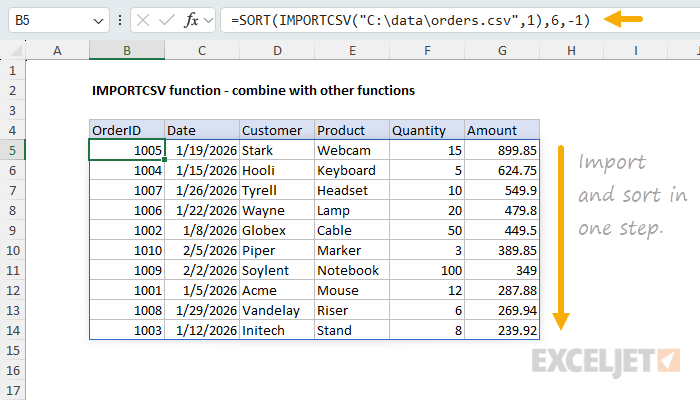
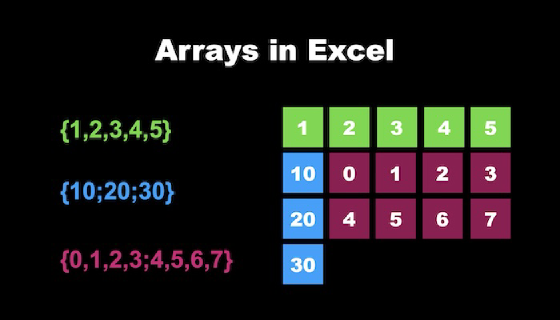
The skip_rows argument of 1 drops the header row, then SORT orders the remaining rows by the sixth column, descending. Note the header values in row four are hand-entered, and the formula is one row down in cell B5. The same pattern works with FILTER, CHOOSECOLS, UNIQUE, and GROUPBY. For light import work, this makes IMPORTCSV a simple alternative to Power Query. For an overview of dynamic arrays in Excel, see Arrays in Excel.
Import from a URL
The path argument also accepts a URL. To import the orders.csv sample file hosted on this page:
=IMPORTCSV("https://exceljet.net/functions/importcsv-function/data/orders.csv")
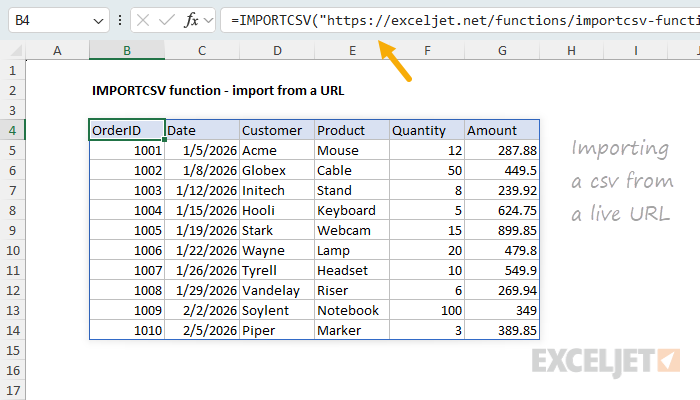
When a URL requires authentication, Excel prompts for an authentication method (Anonymous, Windows, Basic, Web API, or Organizational account). Once entered, credentials are saved and can be managed under Data > Get Data > Data Source Settings.
All of the sample data files listed in the Sample data section above can be imported the same way by replacing the filename in the URL.
Refresh or freeze imported data
Unlike almost all other functions in Excel, IMPORTCSV does not refresh automatically. To re-import the latest data, click Refresh All on the Data tab. Note that if the specified file has been moved or renamed, IMPORTCSV will return a #VALUE! error.
For a one-off import where the data should not change again, replace the formula with static values in the standard way: Select the spilled range, copy it, then use Paste Special > Values (or Home > Paste > Paste Values) to overwrite the formula. The result is now disconnected from the source file and will not change if the file is later modified, moved, or deleted. This is also useful when sharing the workbook with someone who will not have access to the source file.
Notes
- As of September 2026, IMPORTCSV is available only to Microsoft 365 Insiders Beta subscribers.
- Imported data does not refresh automatically. Click Refresh All on the Data tab to update.
- The delimiter is always a comma and the encoding is always UTF-8. For other delimiters, encodings, or fixed-width columns, use IMPORTTEXT.
- Values that contain a comma (like European decimal numbers) must be wrapped in quotes in the source file, per the standard CSV convention.
- The locale argument controls how dates and numbers are parsed, not how they are displayed.
- File paths can be local (e.g.,
C:\data\orders.csv) or URLs starting withhttp://orhttps://. - Negative skip_rows and take_rows values count from the bottom of the file.