

Summary
SUMIF, COUNTIF, and the rest of the *IFS family are workhorse functions used in virtually every industry, because they apply criteria to common operations like sums, counts, and averages. But they work differently than you might realize. They split each condition into two parts, they won't accept arrays, and they have quirks that can silently return the wrong answer. This article explains each quirk and how to work around it.
SUMIF and COUNTIF are two of the most widely used functions in Excel, and they have six siblings. All eight use an unusual syntax, and most of their quirks trace back to one design choice: each condition is split into two parts, a range and criteria. Instead of writing an expression like A1:A10>5, you must provide the range A1:A10 and the criteria >5 as separate inputs. Once you see how that works, the quirks make more sense, and you'll know when to reach for something else. The table below shows all eight *IFS functions:
| Function | Purpose |
|---|---|
| AVERAGEIF | Conditional average with one condition |
| AVERAGEIFS | Conditional average with one or more conditions |
| COUNTIF | Conditional count with one condition |
| COUNTIFS | Conditional count with one or more conditions |
| MINIFS | Conditional minimum with one or more conditions |
| MAXIFS | Conditional maximum with one or more conditions |
| SUMIF | Conditional sum with one condition |
| SUMIFS | Conditional sum with one or more conditions |
COUNTIF, SUMIF, and AVERAGEIF can only apply a single condition. The plural versions (COUNTIFS, SUMIFS, AVERAGEIFS, MINIFS, and MAXIFS) can apply multiple conditions. The examples below use COUNTIF and SUMIF, but the same rules apply to all eight functions.
Although the name suggests otherwise, the IFS function is not part of this family. IFS is designed to run multiple logical tests, written in standard formula syntax, without nesting IF functions.
Table of Contents
- Criteria are split in two
- Ranges are required
- An empty criteria cell is read as zero
- Other quirks
- A bit of history
- Alternatives
Criteria are split in two
In most of Excel, a logical test is a single expression. To check whether the value in B5 is greater than 5, you write:
=B5>5 // returns TRUE or FALSE
Nothing special, right? The expression makes perfect sense, and you can copy it down to test every value in a column. Now suppose you want to count the values in B5:B14 that are greater than 5. With the COUNTIF function, the formula in E5 is:
=COUNTIF(B5:B14,">5")
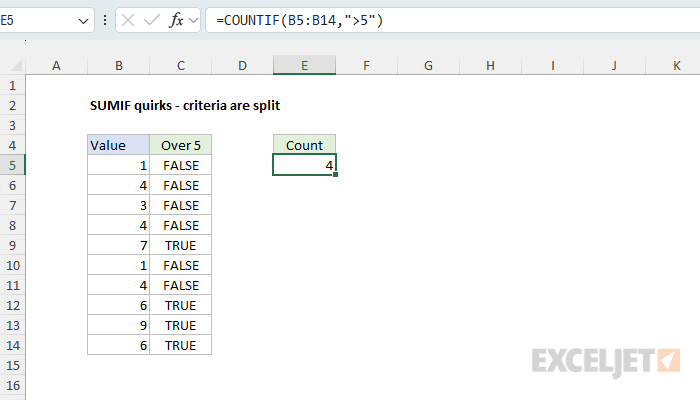
Notice anything strange about this formula? What's ">5" doing in quotes? Isn't 5 a number? Yes, indeed.
This happens because COUNTIF splits the logical expression B5:B14>5 into two parts. The range B5:B14 is perfectly valid, so it stays unquoted, but >5 is a partial and invalid expression, so it must appear in quotes as ">5". Somewhere behind the scenes, Excel reassembles the two parts:
B5:B14>5 // reassembled expression
Things get even weirder when the criteria involves another cell. To count values greater than the number in D5, the formula in E5 is:
=COUNTIF(B5:B14,">"&D5) // what the ??
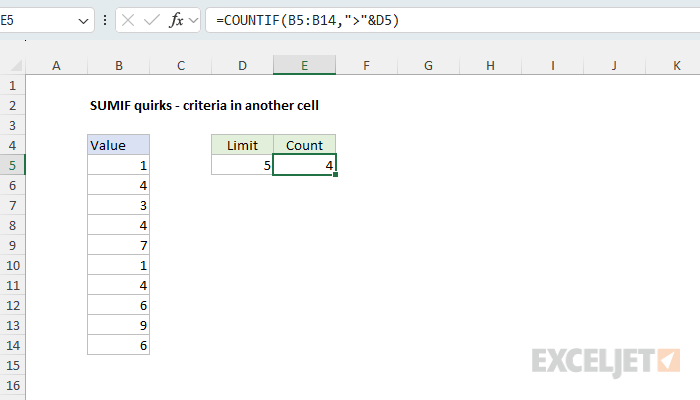
We are counting numeric values, but we need both concatenation and quoted text? Yes. But note the cell reference itself, D5, is not quoted :)
Text criteria are a little simpler. The equals operator (=) is implied, so both of these formulas count cells equal to "apple":
=COUNTIF(B5:B14,"apple")
=COUNTIF(B5:B14,"=apple")
The same goes for numbers: 5 and "=5" both count cells equal to 5.
To summarize, because the *IFS functions split logical expressions into two parts, they require a unique syntax:
- Criteria that include a logical operator must be enclosed in double quotes ("").
- The equals operator (=) can be omitted (or not).
- Criteria based on another cell must use concatenation.
This split is behind most of the quirks below.
Ranges are required
A second key difference is that range arguments must be actual ranges. You can't give an *IFS function an array instead.
At first blush, this may not seem like a big deal. After all, most data is already on a worksheet, so why not use a range? The catch is that you can't alter the values in a range before the function tests them. Dates are a good example. To check whether the date in B5 is in June, you can use the MONTH function:
=MONTH(B5)=6 // returns TRUE or FALSE
Copied down, this formula returns TRUE for the two dates in June:
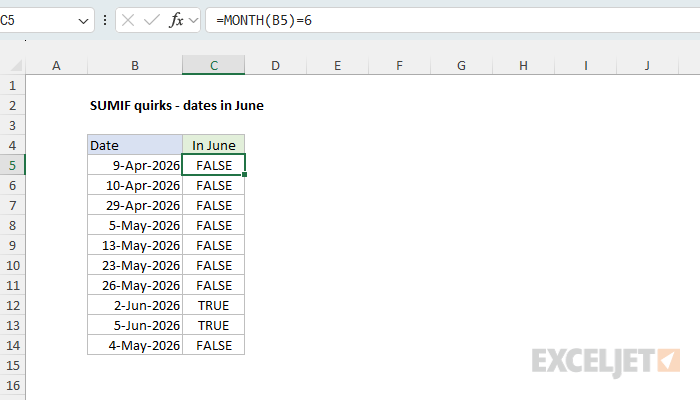
Now, suppose you want to count the dates in June with COUNTIF. You might think you can use MONTH inside COUNTIF like this:
=COUNTIF(MONTH(B5:B14),6) // nope
While this looks perfectly reasonable, Excel won't even let you enter the formula. Instead, it shows a generic "There's a problem with this formula" message:
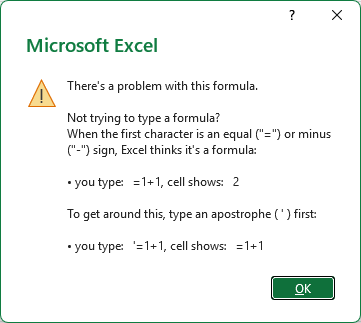
However, that message is misleading. The problem is not that you are missing a comma or something like that. The real problem is that MONTH returns an array of month numbers, and COUNTIF only accepts a range.
Spill ranges work fine in *IFS functions, since a spill range is a range on the worksheet. For example, if C5 contains
=MONTH(B5:B14), the month numbers spill into C5:C14, and=COUNTIF(C5#,6)returns 2.
Because of this limitation, to count dates in June with the COUNTIFS function, you need two conditions, one for the first day of the month and one for the last:
=COUNTIFS(B5:B14,">="&DATE(2026,6,1),B5:B14,"<="&DATE(2026,6,30))
To avoid some of this busy work, we can adapt the formula to use a cell reference. In the worksheet below, the first of the month is in cell D5. The formula in E5 uses this date directly for the first condition and the EOMONTH function to calculate the last day:
=COUNTIFS(B5:B14,">="&D5,B5:B14,"<="&EOMONTH(D5,0))
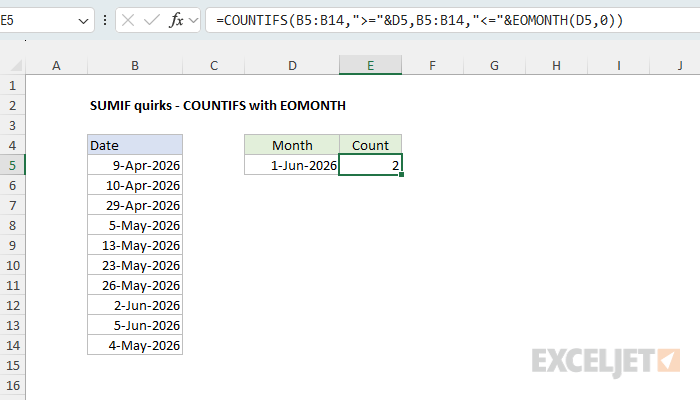
This is more convenient, but we still can't avoid the monkey business of concatenation. And note that both formulas count dates in June 2026, not June in any year, which may or may not match your intention. The Alternatives section below shows how to test the month directly.
An empty criteria cell is read as zero
This quirk catches people who build summary tables. In the worksheet below, the formula in F5, copied down, is:
=SUMIF($B$5:$B$14,E5,$C$5:$C$14)
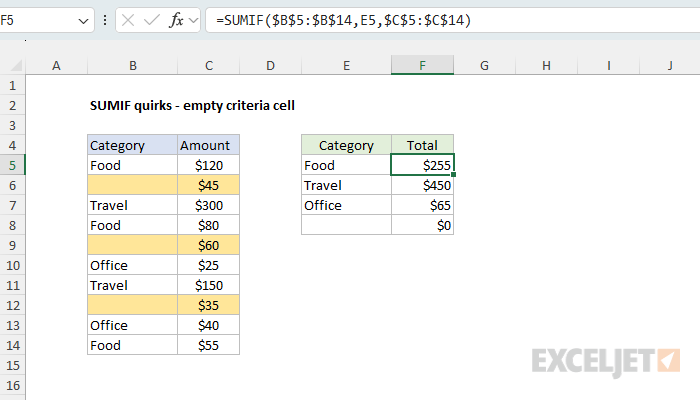
Notice the ranges are locked to prevent them from changing as the formula is copied down, while the criteria (E5) is relative so that it will change. The totals for Food, Travel, and Office are correct. However, E8 is empty, and the three expenses with no category (highlighted) add up to $140. So why does SUMIF return zero in F8 instead of $140?
Well, it turns out that when a criteria argument refers to an empty cell, SUMIF reads it as zero, not as an empty value. So it looks for cells that contain 0 and finds none. If the empty cells in column B held zeros instead, SUMIF would sum those rows.
The fix is to join an empty string ("") to the reference:
=SUMIF($B$5:$B$14,E5&"",$C$5:$C$14)
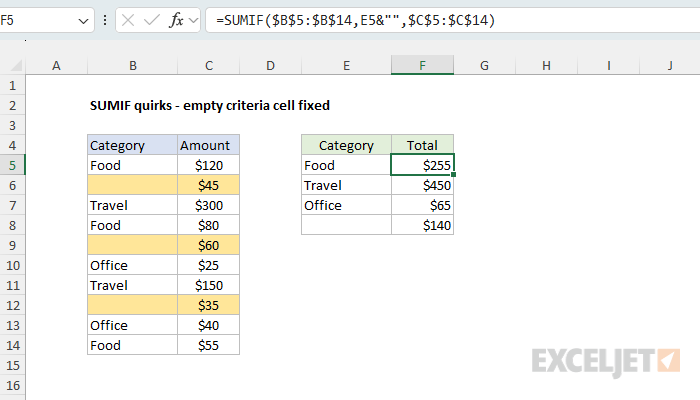
When E5 is empty, the criteria becomes "", which matches empty cells. When E5 contains text, a number, or a date, joining an empty string changes nothing. All eight *IFS functions work this way: when the criteria is an empty cell, they ignore empty cells and match only cells that contain zero.
The devil is in the details. In the example above, the quirk is that an empty cell reference as criteria does not match empty cells. However, you can write a SUMIF formula that sums values associated with empty cells, using either "" or "=" as criteria. For example, both
=SUMIF(B5:B14,"",C5:C14)and=SUMIF(B5:B14,"=",C5:C14)return 140 in the worksheet above. The difference is that "" also matches formulas that return an empty string, while "=" matches only cells that are truly empty. In my opinion, it is this kind of nuance that makes the *IFS functions harder to use correctly than most people realize. Worse, it creates an easy trap to fall into, where normal-looking formulas silently return incorrect results.
Other quirks
The *IFS functions have a few more quirks worth knowing about:
- They treat text that looks like a number as a number, so they strip leading zeros. For example,
=COUNTIF(B5:B9,"01")counts "01", "1", and "001". - They miscount numbers longer than 15 digits, such as credit card numbers, even when the numbers are stored as text.
- Comparisons like ">100" test numbers only and skip text, while an ordinary formula treats any text as greater than a number.
- Wildcards only match text.
=COUNTIF(B5:B10,"1*")counts the text "1abc" but not the number 123. To match numbers by their first digits, see Count numbers that begin with. - Criteria longer than 255 characters return a #VALUE! error. To match long text, compare directly with a formula like
=SUM(--(B5:B10=E5)). - SUMIF and AVERAGEIF quietly resize sum_range and average_range to match range, starting from the top-left cell. A sum range with the wrong size or extra columns gives a result that looks normal but is wrong. The other functions return #VALUE! when the ranges differ in size.
- A range in another workbook only works while that workbook is open. Otherwise, the formula returns #VALUE!.
- 3D references are not allowed for range arguments.
A bit of history
SUMIF and COUNTIF first appeared in Excel 5 in 1993, but their criteria syntax is even older. Excel's database functions, like DSUM and DCOUNT, use a criteria range on the worksheet: a header, with conditions like >5 typed in the cells below it. SUMIF and COUNTIF work like a database function with a one-cell criteria range packed into an argument. In an argument, >5 has to be text, so it goes in quotes.
Excel also defines the range arguments as references to worksheet cells, while criteria is a plain value. That one detail explains several quirks above: a range can't be an array, a range in a closed workbook returns #VALUE! (the database functions do the same), and an empty criteria cell becomes zero, just as =E8 returns 0 when E8 is empty.
SUMIFS, COUNTIFS, AVERAGEIF, and AVERAGEIFS followed in Excel 2007, and MINIFS and MAXIFS in 2016, all built the same way. Meanwhile, SUMPRODUCT, which was designed to work with arrays, has been around since Excel 3 in 1990, and just works.
Earlier versions of this article called these the RACON functions, short for "range-based conditional" functions, a name that came from a reader. It never really caught on, so I've retired it.
Alternatives
How can you count dates in June without these limitations? In Excel 2021+ and Excel 365, which support dynamic arrays, the SUM function can do it with Boolean logic. The formula in D5 is:
=SUM(--(MONTH(B5:B14)=6))
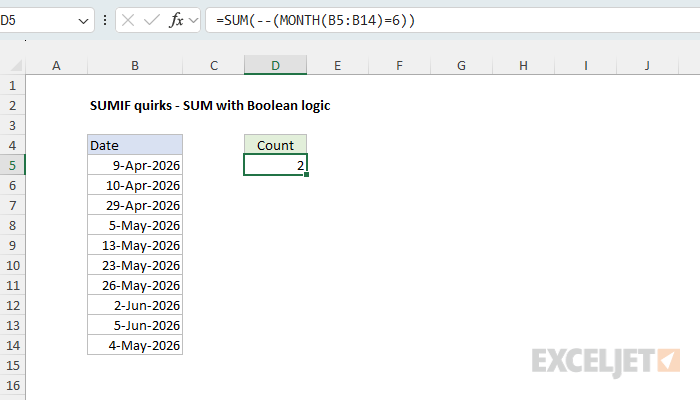
Notice the logical test, MONTH(B5:B14)=6, is exactly the same test we used above to check one date, applied to the whole range at once. The result is an array of TRUE and FALSE values, and the double negative (--) converts them to 1s and 0s so SUM can add them up.
The FILTER function uses the same logic:
=COUNT(FILTER(B5:B14,MONTH(B5:B14)=6))
And in Excel 365, the GROUPBY function can count the dates in every month at once:
=GROUPBY(MONTH(B5:B14),B5:B14,COUNT,0,0)
In Excel 2019 and earlier, use the SUMPRODUCT function, which handles arrays natively in every version of Excel:
=SUMPRODUCT(--(MONTH(B5:B14)=6))
For more on this approach, see Why SUMPRODUCT?
The beauty of dynamic array formulas is that logical expressions work the same way everywhere, with the same clean syntax and no special keystrokes. The *IFS functions are still useful and, in some slightly twisted way, "easier" for many users. But when you run into one of the quirks above, what seemed easy suddenly becomes hard. In many cases, a modern approach is simpler and more flexible.
To learn more about modern formulas in Excel, browse our dynamic array formula examples. If you'd like more structure, including practice worksheets, see our video course on Dynamic Array Formulas.