

Summary
Excel's DATEDIF function is widely used for calculating the difference between two dates in years, months, or days, but it will silently return buggy results in specific cases. DATEDIF2 is a custom LAMBDA function that replaces DATEDIF with reliable date arithmetic. This article explains the problems with DATEDIF, walks through the DATEDIF2 formula step by step, and shows where the two functions differ.
Excel's DATEDIF function calculates the difference between two dates in years, months, or days. Despite being available in every version of Excel, DATEDIF is a "compatibility" function inherited from Lotus 1-2-3 that has never been fully documented or integrated into Excel's function library. It doesn't appear in autocomplete, and Excel won't help you fill in arguments. And, as it turns out, DATEDIF is buggy with certain date pairs and units. This article explains how to replace DATEDIF with a more reliable solution.
This is a great example of how Excel's new LAMBDA function makes it easy to roll your own custom functions. The LAMBDA function is available in Excel 365 and Excel 2024+.
Table of contents
- The problem with DATEDIF
- The DATEDIF2 formula
- How to use DATEDIF2
- How EDATE works
- How DATEDIF2 works
- Where DATEDIF and DATEDIF2 differ
- Test results
- Conclusion
- Related functions
The problem with DATEDIF
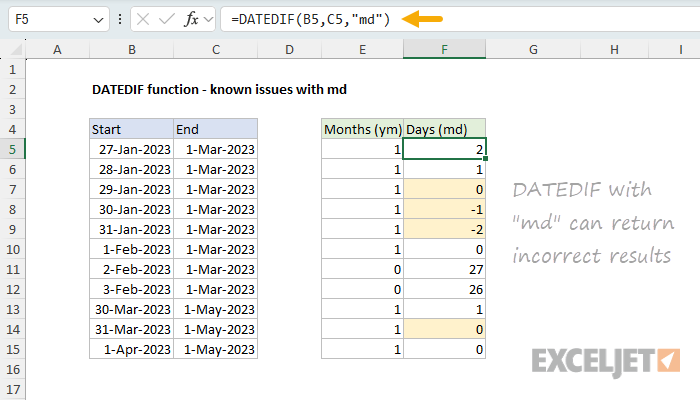
DATEDIF supports six unit codes ("y", "m", "d", "ym", "yd", and "md") that return complete years, complete months, total days, and partial intervals. The function is genuinely useful and works correctly for most date pairs, which explains why it remains popular despite its unofficial status. But certain combinations of dates and units generate incorrect results. The best-known issue is the "md" unit, which can return negative numbers or incorrect results when the start date falls near the end of a month. Microsoft's own documentation warns about this, and you can see the problem clearly in the worksheet below, where the goal is to calculate the number of months and days between two dates:
When I tested DATEDIF against hundreds of date pairs, I found problems with other units as well:
- "m" and "ym" undercount complete months by one when the start date falls on the 29th, 30th, or 31st and the end date lands on the last day of a shorter month (e.g., January 31 to February 28 returns 0 months instead of 1).
- "yd" can be off by one day when the date span crosses a February 29 leap day boundary. Unlike the "md" bug, this affects ordinary dates — not just end-of-month dates.
- "m" and "ym" are inconsistent with EDATE. Excel's EDATE function considers January 31 plus one month to be February 28, but DATEDIF does not consider January 31 to February 28 to be one complete month. The two built-in functions disagree on what "one month" means.
In fact, only the "d" unit (total days) is completely reliable across all date pairs. Although it is possible to work around these problems individually, tracking each issue is tricky and time-consuming, because the edge cases are quite specific and the problems, when they appear, are subtle and nuanced. In a modern version of Excel, I think a better solution is to replace DATEDIF altogether with a more reliable formula.
For a more detailed explanation of the problems with DATEDIF, see the DATEDIF function page.
The DATEDIF2 formula
DATEDIF2 is a custom, drop-in replacement for DATEDIF built entirely from standard Excel functions. It uses EDATE as the foundation for month and year arithmetic (see below for more details), which eliminates the "md" bug, fixes the end-of-month inconsistencies, and returns correct "yd" counts across leap years. Because every calculation flows through EDATE, DATEDIF2 is internally consistent and agrees with Excel's own date arithmetic.
DATEDIF2 is defined as a named LAMBDA with the same three arguments as DATEDIF. The formula is as follows:
=LAMBDA(start,end,unit,
  IF(start>end,
    #NUM!,
      LET(
        _m,(YEAR(end)-YEAR(start))*12+MONTH(end)-MONTH(start),
        m,_m-(EDATE(start,_m)>end),
        y,INT(m/12),
        SWITCH(unit,
          "D",end-start,
          "M",m,
          "Y",y,
          "YM",MOD(m,12),
          "YD",end-EDATE(start,y*12),
          "MD",end-EDATE(start,m)
        )
      )
  )
)
To use this formula, define a named function called DATEDIF2 in Excel's Name Manager (Formulas > Name Manager > New) and paste the LAMBDA above as the definition. Once defined, DATEDIF2 works just like DATEDIF:
=DATEDIF2("2025-01-15","2025-09-20","m")  // returns 8
=DATEDIF2("2025-01-31","2025-02-28","m")  // returns 1 (DATEDIF returns 0)
Note: You can also "import" DATEDIF2 by copying and pasting a DATEDIF2 formula into another workbook. Excel will automatically define the function for you. For more details about creating a custom named lambda function, see the LAMBDA function page.
How to use DATEDIF2
DATEDIF2 works just like DATEDIF and has the same three arguments:
start- The start date.end- The end date. Must be greater than or equal to start.unit- A text code specifying the time unit: "y", "m", "d", "ym", "yd", or "md".
| Unit | Result |
|---|---|
| "y" | Complete years between dates |
| "m" | Complete months between dates |
| "d" | Total days between dates |
| "ym" | Months remaining after complete years |
| "yd" | Days remaining after complete years |
| "md" | Days remaining after complete months |
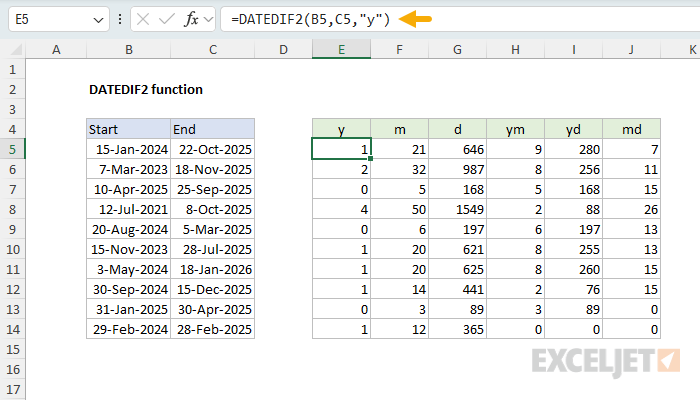
The worksheet below shows DATEDIF2 returning correct results for all six units.
How EDATE works
Before we get into the details of the DATEDIF2 formula, it's important to understand the logic of the EDATE function. EDATE adds and subtracts complete months from a given date. For example, to add 6 months to a date in cell A1, you can use EDATE like this:
=EDATE(A1, 6) // add 6 months
What makes EDATE especially useful is how it handles month boundaries. When calculating a result, EDATE takes into account how many days are in the month. For example, if you add 1 month to January 31, EDATE will return February 28. In a leap year, EDATE will return February 29:
=EDATE("31-Jan-2026", 1) // returns "28-Feb-2026"
=EDATE("31-Jan-2024", 1) // returns "29-Feb-2024"
This is consistent with how most people think of adding months to a date, but it can create some interesting results, as seen in the table below:
| Start date | Months | EDATE result | Notes |
|---|---|---|---|
| Jan 15 | 1 | Feb 15 | Day exists in February (no adjustment) |
| Jan 31 | 1 | Feb 28 | Capped at last day of February |
| Jan 29 | 1 | Feb 28 | Also capped (no Feb 29th in non-leap year) |
| Mar 31 | 1 | Apr 30 | Capped at last day of April |
| Jan 31 | 2 | Mar 31 | Day exists in March (no adjustment) |
| Jan 31 | 3 | Apr 30 | Capped at the last day of April |
The key takeaway is that EDATE caps the result at the last day of the target month when the starting day number doesn't exist in that month. This means that January 31 plus one month is February 28, and January 31 plus three months is April 30.
This behavior is central to how DATEDIF2 works. Because the EDATE function correctly handles month boundaries, we can use it as the basis of a formula to replace the DATEDIF function that generates correct results for all units.
How DATEDIF2 works
The entire formula is built on a single foundation: an EDATE-consistent count of complete months between the two dates. Every other unit (years, remaining months, remaining days) is derived from that month count. To start off, we open the formula with the LAMBDA function:
=LAMBDA(start,end,unit,
Note that we list three required arguments: start, end, and unit. From here, the code works in 5 steps:
Step 1: Error handling
The DATEDIF function requires that the start date be less than or equal to the end date and returns a #NUM! error if the start date is greater than the end date. To mimic this behavior, DATEDIF2 checks for start > end, and forces a #NUM! error if true:
IF(start>end,
  #NUM!,
)
This code exits the formula immediately if the start date is greater than the end date.
Step 2: Estimate total months
_m,(YEAR(end)-YEAR(start))*12+MONTH(end)-MONTH(start)
This calculates a naive* month difference by comparing the year and month components of the two dates, which are extracted with the YEAR function and the MONTH function. For example, January 15 to September 20 gives (2025-2025)*12 + (9-1) = 8. This estimate is correct most of the time, but it can overcount by one when the end date hasn't reached the "same day" of the month. For example, January 20 to September 15 also gives 8, but only 7 complete months have elapsed.
*The term "naive" here means the calculation uses only the year and month numbers without checking whether a full month has actually elapsed. It's a fast estimate that is correct most of the time, but it can overcount by one. The following step corrects for this.
Step 3: Adjust with EDATE
m,_m-(EDATE(start,_m)>end)
This is the key step. We ask: "If I add _m months to the start date using EDATE, do I overshoot the end date?" If so, it means the naive estimate was too high by one, so we subtract 1. The expression (EDATE(start,_m)>end) returns TRUE or FALSE, which coerces to 1 or 0 in the subtraction. It's a bit more concise than the longer formula IF(EDATE(start,_m)>end, 1, 0) but the result is the same.
This is what makes DATEDIF2 consistent with EDATE. Because we use EDATE itself to validate the month count, the result always agrees with Excel's own month arithmetic. For example:
- January 31 to February 28: naive
_m = 1,EDATE("Jan 31", 1) = Feb 28,Feb 28 > Feb 28is FALSE →m = 1. DATEDIF2 correctly returns 1 complete month. - January 20 to September 15: naive
_m = 8,EDATE("Jan 20", 8) = Sep 20,Sep 20 > Sep 15is TRUE →m = 7. Correctly adjusted.
Step 4: Derive complete years
y,INT(m/12)
Complete years is simply the month count divided by 12, rounded down with the INT function. Since the month count is already consistent with EDATE, the year count is too.
Step 5: Return the requested unit
SWITCH(unit,
  "D",end-start,
  "M",m,
  "Y",y,
  "YM",MOD(m,12),
  "YD",end-EDATE(start,y*12),
  "MD",end-EDATE(start,m)
)
The SWITCH function routes to the correct calculation based on the unit argument:
"D" — Total days. Simple subtraction. Because Excel dates are serial numbers, end - start gives the exact number of days.
"M" — Complete months. Returns m directly — the month count from Step 2.
"Y" — Complete years. Returns y — the month count divided by 12 from Step 3.
"YM" — Months remaining after complete years. MOD(m,12) uses the MOD function to return the remainder when dividing the total month count by 12. For example, 26 complete months yields MOD(26,12) = 2 remaining months.
"YD" — Days remaining after complete years. EDATE(start, y*12) adds complete years (as months) to the start date, then subtracts from end. This counts actual days using real calendar dates, avoiding the leap year off-by-one error that affects DATEDIF's "yd" unit.
"MD" — Days remaining after complete months. EDATE(start, m) adds all complete months to the start date, then subtracts from end. This is the same EDATE workaround recommended for DATEDIF's broken "md" unit.
Note: SWITCH is not case-sensitive. The formula above uses uppercase "D", "M", "Y", "YM", "YD", and "MD" for consistency, but you can use lowercase "d", "m", "y", "ym", "yd", and "md" as well, same as DATEDIF.
Where DATEDIF and DATEDIF2 differ
For most date pairs, DATEDIF and DATEDIF2 return the same results. They differ only in edge cases involving end-of-month boundaries and leap years. The table below shows examples:
| Start | End | Unit | DATEDIF | DATEDIF2 |
|---|---|---|---|---|
| 2025-01-31 | 2025-02-28 | "m" | 0 | 1 |
| 2025-03-31 | 2025-04-30 | "m" | 0 | 1 |
| 2025-01-31 | 2025-04-30 | "m" | 2 | 3 |
| 2024-02-29 | 2025-02-28 | "y" | 0 | 1 |
| 2025-01-29 | 2025-03-01 | "md" | 0 | 1 |
| 2025-01-31 | 2025-03-01 | "md" | -2 | 1 |
| 2015-01-03 | 2016-07-28 | "yd" | 206 | 207 |
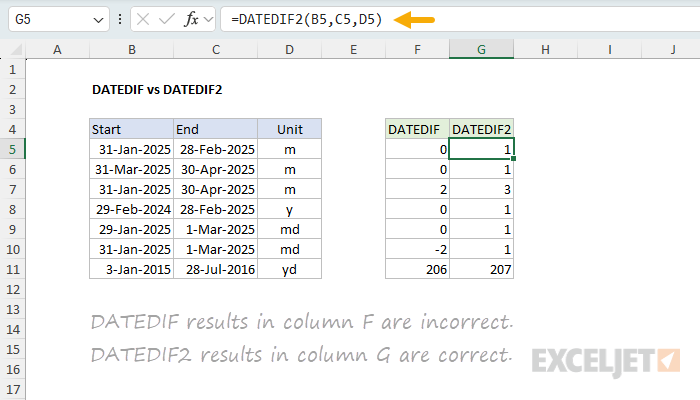
In every case, DATEDIF2's result is consistent with what EDATE would produce. DATEDIF's results reflect a stricter day-number comparison that doesn't account for month-length differences.
Test results
To test the formula, I created a spreadsheet with 288 date pairs and calculated the results for each unit using both DATEDIF and DATEDIF2. Since there are six different units, there were 1,728 separate tests. The date pairs were chosen to cover a wide range of tricky scenarios:
- Known "md" trouble spots (January 29-31 to March 1, etc.)
- Leap year boundaries (February 28/29 crossings)
- End-of-month to end-of-month pairs (all 12 months)
- Same day-of-month at various intervals
- Short spans (adjacent days, same month)
- Month boundary crossings (28th-31st starts)
- Multi-year spans (1 to 20 years)
- First-of-month pairs (all combinations)
- 60 random date pairs (to confirm normal behavior)
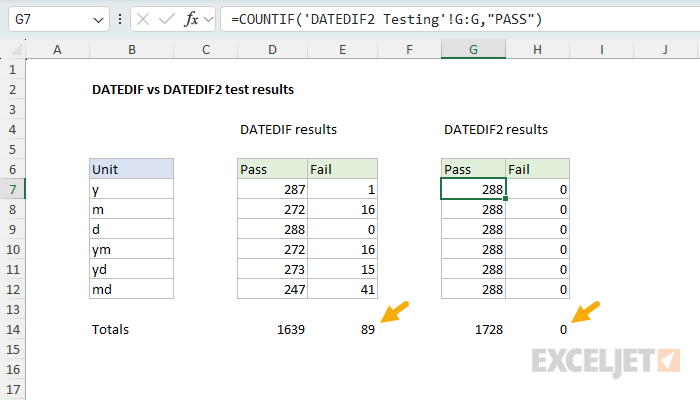
I calculated the expected values independently using Python's dateutil.relativedelta library. This is a library extension for datetime that computes time differences, taking into account months of varying lengths and leap years. Importantly, it handles end-of-month boundaries in the same way as EDATE. The DATEDIF2 formula matched all 288 expected values across all six units, for a total of 1,728 individual checks. By comparison, DATEDIF failed 89 of those same checks:
Conclusion
DATEDIF is a useful function, but its problems with end-of-month dates, leap years, and the "md" unit make it buggy in specific edge cases. DATEDIF2 fixes these problems by building every calculation on top of EDATE, which gives it a consistent definition of "one month" that agrees with Excel's own date math. If you use DATEDIF in your worksheets, DATEDIF2 is a drop-in replacement, with the same arguments, same unit codes, and correct results across all six units. This is an excellent example of how Excel's LAMBDA function makes it easy to roll your own custom functions.
Related functions
This article refers to a number of Excel functions. You can find detailed documentation at the links below: